Spectrum Business Call Forwarding Setup Guide
Complete 2026 guide to Spectrum Business Voice call forwarding: setup, troubleshooting, scheduling, and how Eden ensures every call gets answered.
January 20, 2026
Your main business line rings during dinner. Again. Or maybe it's ringing right now while you're reading this, and you can't pick up because you're tied up with a customer. Either way, those missed calls turn into missed opportunities.
Small business owners face this problem constantly. You're either glued to your desk phone, ignoring after-hours calls that go to voicemail (where 80% of callers hang up instead of leaving a message), or scrambling to answer everything yourself.
Spectrum Business Voice call forwarding solves this by sending incoming calls to any phone number you choose when you're busy, unavailable, or simply can't answer.
This guide explains every call forwarding option available on Spectrum Business Voice, including the fastest setup methods using star codes and the detailed portal configuration. We'll also cover scheduling forwarding automatically for after-hours coverage, troubleshooting common problems, and how to integrate with AI answering solutions like Eden for complete 24/7 call coverage.
What Is Spectrum Business Voice Call Forwarding?#
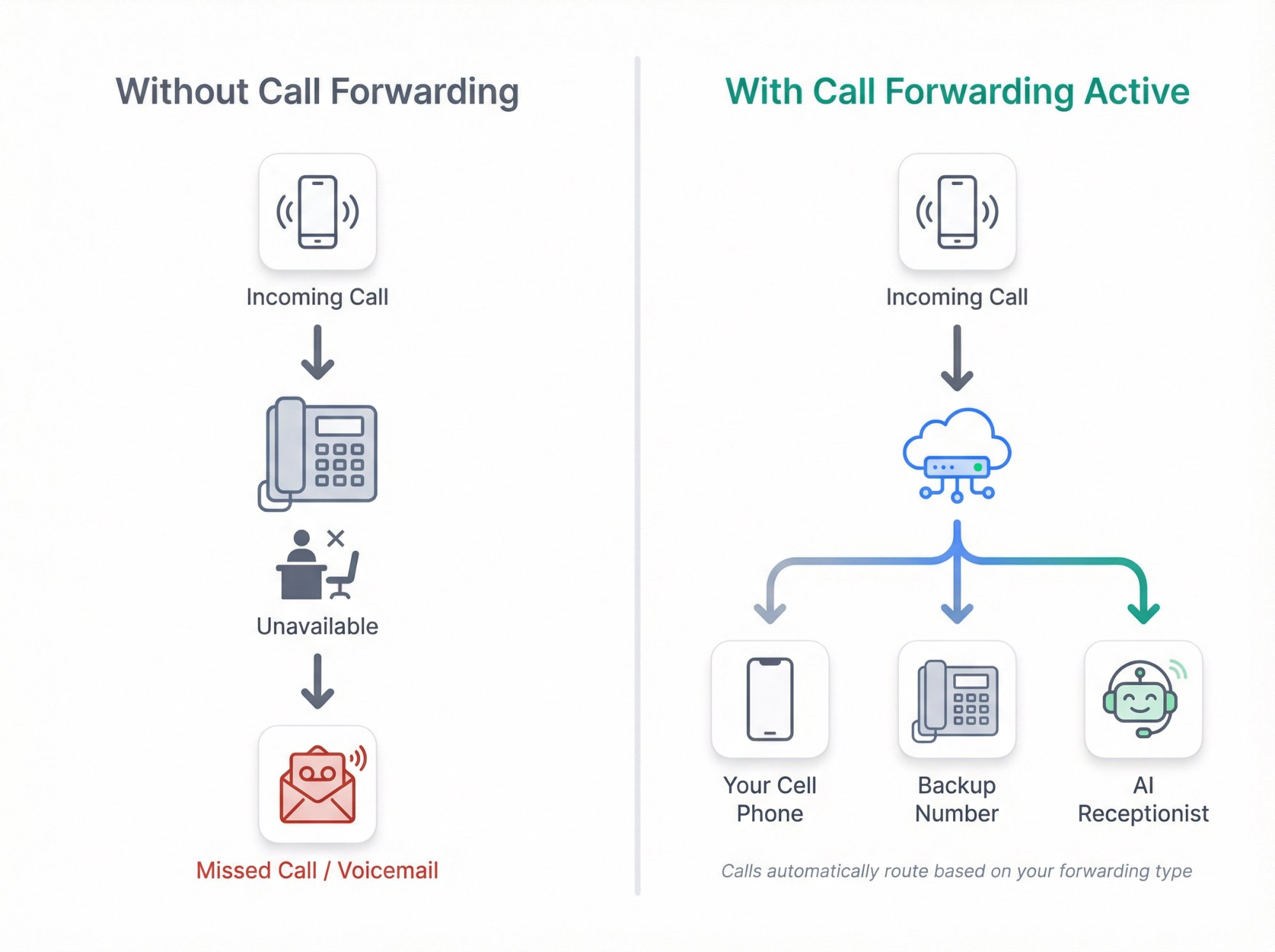
Call forwarding redirects incoming calls from your Spectrum business number to a different phone number automatically. You set it up once, and Spectrum's network handles the routing before the call even reaches your desk phone.
Here's what makes it valuable: Instead of callers hitting voicemail or a busy signal, they reach you at another location or connect with a backup answering solution. Your business line stays responsive even when you're away from the office, on another call, or working after hours.
Spectrum Business Voice includes several forwarding types at no extra monthly charge in most markets:
Call Forwarding Always
Every call goes immediately to your chosen number without ringing your desk phone at all
Call Forwarding Busy
Forwards only when your line is already in use on another call
Call Forwarding No Answer
Lets your phone ring a set number of times, then forwards if you don't pick up
Selective Call Forwarding
Routes only specific caller numbers to a different destination while all other calls ring normally
Call Forwarding Unavailable (backup forwarding)
For VoIP customers, this automatically forwards calls if your office phones lose service due to a power or internet outage
The system activates before your Spectrum voicemail would normally pick up, so forwarded calls bypass voicemail entirely until you turn the feature off.
How Does Spectrum Call Forwarding Actually Work?#
When you enable call forwarding, Spectrum's network intercepts the call at the switch level. The caller doesn't notice anything different on their end. They dial your business number, and the call rings at the forwarded destination as if they called that number directly.
Important Technical Details#
Your Spectrum phone might give a brief "ring splash" (a half-ring notification) when a call is forwarded, just to alert you that a call came in. This is normal behavior. Don't pick up during this quick ring because the call isn't actually there yet. It's already routing to your forward-to number.
Once forwarding is active, calls completely skip your Spectrum voicemail. The forwarded destination handles the call. This matters because if you forward to a cell phone that doesn't answer, the call will hit that phone's voicemail instead of returning to your Spectrum voicemail box.
Critical restriction: Spectrum only allows forwarding to domestic U.S. phone numbers (standard 10-digit numbers, including toll-free). You cannot forward internationally. Always include the full area code when setting up forwarding. If the destination is long-distance from your local area, prefix the number with "1" before the area code.
How to Enable Call Forwarding in Your Spectrum Account#
Most Spectrum Business Voice accounts have call forwarding features enabled by default, but not all. If you try using star codes and nothing happens, the feature might need activation in your online account first.
Log into your Spectrum Business account portal. Navigate to the Voice settings section, which might be labeled "Voice Manager" or "Manage Voice" depending on your account type. Look for the Call Forwarding section.
You should see toggles or checkboxes for each forwarding type:
-
Forward All Calls
-
Forward Busy
-
Forward No Answer
-
Selective Call Forwarding
Turn on the feature you plan to use. Some accounts require you to enable the feature here before the phone-based star codes will respond. Save your changes.
This is a one-time setup step. Once the feature is enabled in the portal, you can activate and deactivate it anytime using the quick star codes from your phone.
How to Set Up Call Forwarding Using Star Codes (Fastest)#
Star codes let you control call forwarding directly from any phone connected to your Spectrum Business Voice line. This is by far the fastest method when you're at your desk and need to turn forwarding on or off immediately.
How to Forward All Calls (Unconditional Forwarding)#
Use this when you want every incoming call sent to another number without your office phone ringing at all.
To activate:
① Pick up your Spectrum business phone and listen for dial tone
② Dial *72
③ Wait for a tone or prompt (usually a stutter dial tone, then continuous dial tone)
④ Enter the 10-digit destination number (include area code; add "1" before area code if it's long-distance)
⑤ Wait for confirmation (you'll hear a tone or brief announcement)
⑥ Hang up
Your forwarding is now active. Test it by calling your business number from another phone. It should ring at the forwarded destination immediately.
To deactivate:
① Pick up your phone
② Dial *73
③ Wait for confirmation tone
④ Hang up
Calls now ring your desk phone normally again.
Quick check: If you're unsure whether forwarding is on, dial *72 again. If you hear a rapid busy signal, forwarding is already active. If you hear a normal dial tone, it's off.
How to Forward Calls When Your Line Is Busy#
This forwards only calls that arrive while your line is already occupied with another call. Your first call stays active, and the second caller gets routed to your backup number instead of hearing a busy signal.
To activate:
① Get dial tone
② Dial *90
③ Enter the 10-digit forwarding number
④ Wait for confirmation
⑤ Hang up
To deactivate: Dial *91, wait for confirmation, hang up.
How to Forward Calls When You Don't Answer#
This lets your phone ring normally, but if you don't pick up within a set number of rings, the call forwards to your backup number. It's ideal for everyday coverage where you want to answer when available but have a safety net for missed calls.
To activate:
① Dial *92
② Enter the 10-digit forwarding number
③ Some systems require pressing # after the number to confirm
④ Wait for confirmation
⑤ Hang up
By default, Spectrum typically waits 4 rings before forwarding. You can adjust the ring count in the online portal if you want a shorter or longer delay (usually 2 to 6 rings).
To deactivate: Dial *93, wait for confirmation, hang up.
How to Set Up Selective Call Forwarding#
This routes only specific callers to a different number. You maintain a list of phone numbers that should be forwarded, and everyone else rings your desk phone normally.
To activate:
① Dial *63
② Follow the voice prompts (if available) to add numbers to your selective forwarding list
③ If there's no menu, enter a 10-digit number you want to forward, press the required key (often # or just dial key)
④ Repeat to add more numbers (up to 30 numbers typically)
⑤ The system will prompt for your forward-to destination number
To deactivate: Dial *83, wait for confirmation, hang up.
Pro tip: Selective forwarding is often easier to manage through the web portal where you can see your full list of numbers and edit them visually.
Spectrum Call Forwarding Star Codes (Quick Reference)#
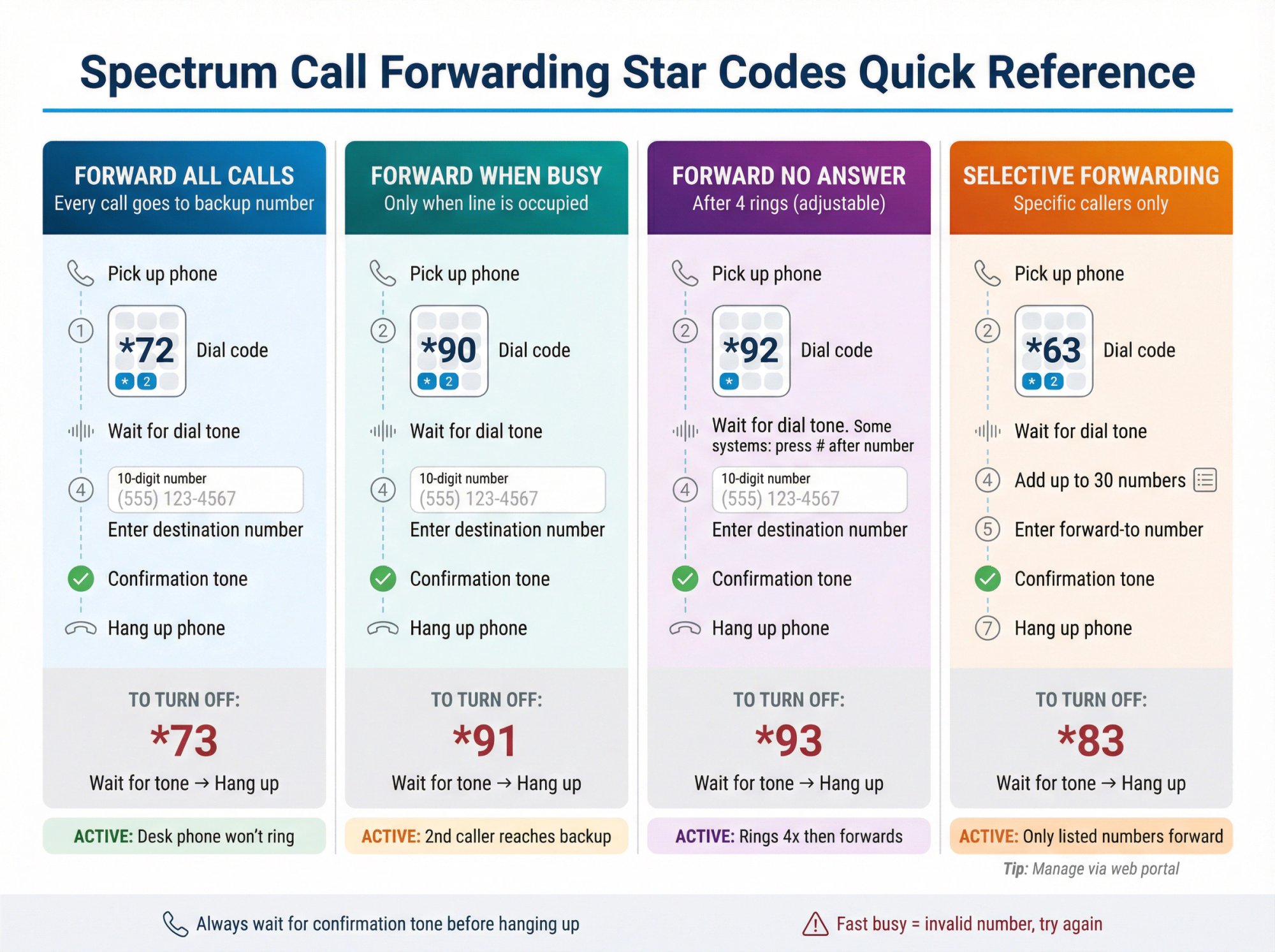
| Feature | Activate | Deactivate |
|---|---|---|
| Forward All Calls | *72 + number | *73 |
| Forward When Busy | *90 + number | *91 |
| Forward No Answer | *92 + number | *93 |
| Selective Forwarding | *63 (then add numbers) | *83 |
Always wait for the confirmation tone or announcement before hanging up. If you hear a fast busy signal instead, the number you entered might be invalid. Double-check the digits and try again.
How to Configure Call Forwarding Through Spectrum Portal#
If you're away from the office or prefer a graphical interface for managing forwarding rules, use the Spectrum Business Voice Manager portal. This method also gives you more control over advanced settings like ring count and scheduled forwarding.
How to Access Spectrum Forwarding Settings Online#
① Go to business.spectrum.com and log in with your admin credentials
② Navigate to Voice or Phone Management (exact labels vary by account)
③ Click Manage Voice or Voice Manager
④ Select Incoming Calls or Call Forwarding
You should see options for all forwarding types. If you have multiple phone lines on your account, select the specific line you want to configure from the dropdown.
How to Set Up Forward All Calls in the Portal#
① Find the Call Forwarding section
② Toggle Call Forward or Forward All Calls to ON
③ Choose when to forward (select "Prior to Ring" or "Immediately" for unconditional forwarding)
④ Enter the destination phone number in the Forward To field
-
You may need to add the number to an approved list first by clicking "Manage Forwarding Numbers"
-
Add the number and optionally give it a label (like "Cell" or "Eden AI")
⑤ Select that number from the dropdown menu
⑥ Click Save
The portal usually displays a confirmation or status indicator showing that forwarding is active.
How to Configure Conditional Forwarding (Busy and No Answer)#
① In the Call Forwarding settings, find Forward When Busy and Forward When No Answer
② For Forward Busy:
-
Toggle it ON
-
Enter or select the destination number
-
Save
③ For Forward No Answer:
-
Toggle it ON
-
Set the number of rings before forwarding (typically 2 to 6 rings)
-
Enter or select the destination number
-
Save
You can enable both at the same time. This creates comprehensive coverage: calls forward if you're on another line or if you simply don't answer. Together, these ensure no caller hits a busy signal or goes unanswered.
How to Set Up Backup Forwarding (When Service Is Unavailable)#
Some accounts show a Backup Phone or Forward When Unavailable option. This automatically routes calls if your office phone system loses network connectivity.
① Look for Forward When Unavailable or Backup Phone in the portal
② Toggle it ON
③ Enter the backup number (typically a cell phone)
④ Save
This acts as a safety net during outages. If your internet or VoIP service goes down, incoming calls automatically reach your mobile instead of failing completely.
How to Turn Off Call Forwarding in the Portal#
To turn off any forwarding rule:
① Go back to Call Forwarding in Voice Manager
② Toggle the feature OFF
③ Save
Changes take effect immediately. Test by calling your business number to confirm it rings normally again.
How to Schedule Automatic Call Forwarding (After-Hours & Weekends)#
Manually toggling forwarding on and off every evening is tedious. Spectrum Business Voice includes Call Scheduler, a feature that automatically switches call handling based on time of day and day of week.
What Call Scheduler Does#
Call Scheduler lets you define up to three different calling configurations and switch between them automatically on a schedule.
Example use case:
Configuration 1 (Business Hours): No forwarding. You answer directly. Optionally enable Forward Busy or No Answer to a backup number.
Configuration 2 (After Hours): Forward all calls to Eden or your cell phone.
Configuration 3 (Lunch Hour): Forward no-answer calls after fewer rings to catch inquiries while you're briefly away.
This eliminates the need to remember to activate forwarding at the end of the day or turn it off in the morning.
How to Set Up Automatic Call Scheduling#
① In Voice Manager, go to Preferences > Custom Routing > Call Scheduler
② Click Create Configuration
For Configuration 1 (Normal Hours):
-
Name it "Business Hours"
-
Set your regular call handling (direct ring, or conditional forwarding if desired)
-
Save
For Configuration 2 (After Hours):
-
Name it "After Hours"
-
Enable Call Forward Always
-
Set the forward-to number (your 24/7 answering solution)
-
Save
For Configuration 3 (Optional):
-
Name it "Lunch" or "Field Time"
-
Enable Call Forward No Answer with a shorter ring count (2 rings instead of 4)
-
Set the forward-to number
-
Save
③ Create your schedules:
-
Define a repeating weekly schedule for when each configuration should activate
-
Example: Configuration 1 runs Monday to Friday 9 AM to 6 PM; Configuration 2 runs all other times; Configuration 3 runs daily 12 PM to 1 PM
④ Activate Call Scheduler
Once active, the system automatically switches call handling based on your schedule. You can edit schedules or temporarily override them anytime through the portal.
Pro insight: Call Scheduler is one of the most underused features in Spectrum Business Voice. If you get after-hours calls or need weekend coverage, set this up once and never worry about manual forwarding again.
How to Fix Common Call Forwarding Problems#
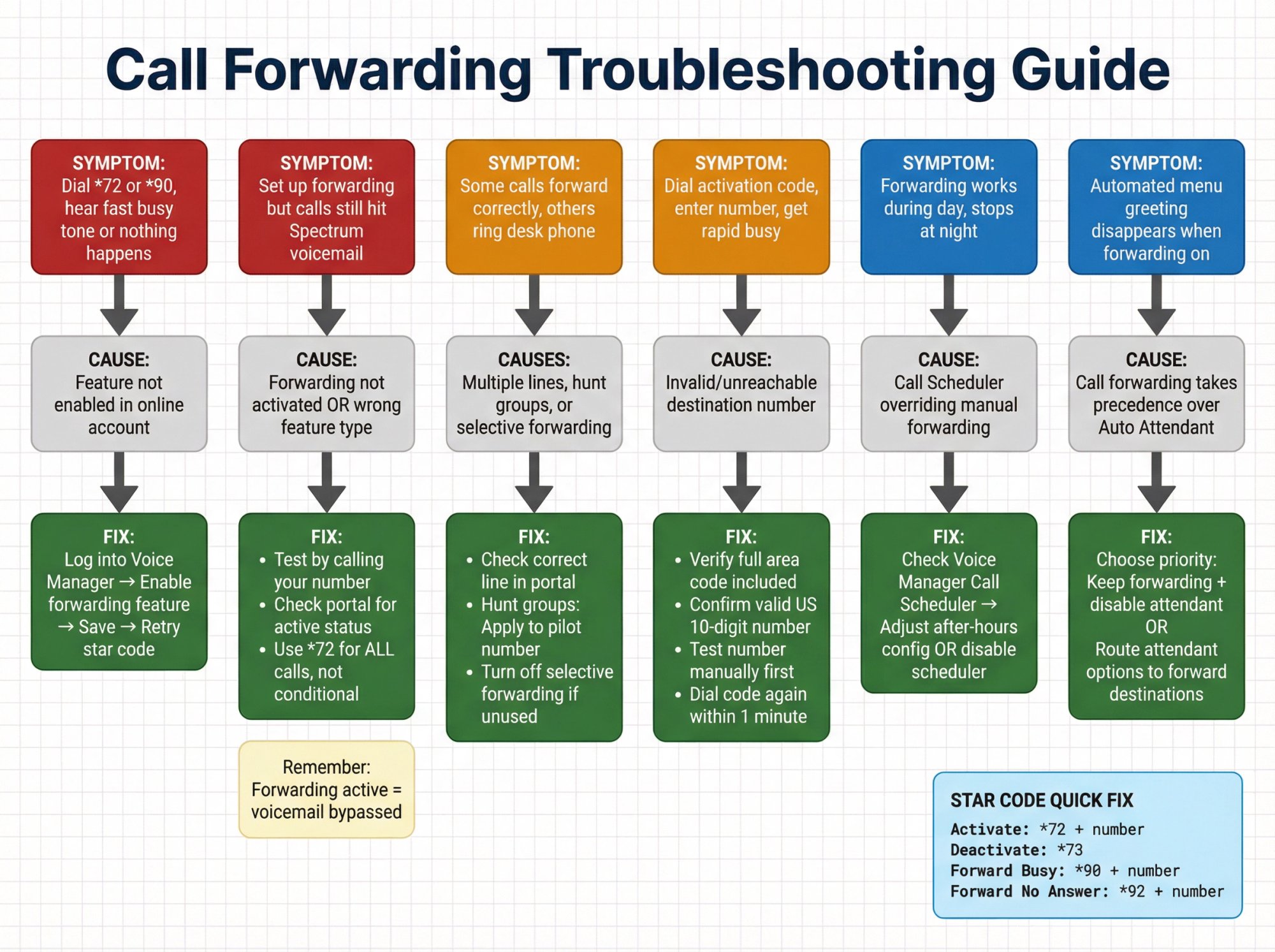
Why Star Codes Don't Work#
| Symptom | You dial *72 or *90 and hear a fast busy tone or nothing happens |
|---|---|
| Cause | The feature may not be enabled in your online account yet |
| Fix | Log into Voice Manager and enable the specific forwarding feature (Forward All, Forward Busy, etc.) in the Call Forwarding settings. Save your changes. Then retry the star code from your phone. |
Why Calls Still Go to Voicemail Instead of Forwarding#
| Symptom | You set up forwarding, but calls still hit Spectrum voicemail |
|---|---|
| Cause | Forwarding might not have activated successfully, or you're using the wrong feature for your goal |
| Fix | → Verify forwarding is actually on by calling your number from another phone. Does it ring the forwarded destination? |
| → Check the portal to see if the feature shows as active | |
| → Make sure you're using the right forwarding type. If you want all calls forwarded, use *72 or enable "Forward All Calls," not just conditional forwarding |
Remember: When forwarding is active, Spectrum voicemail is bypassed entirely. If the forwarded number doesn't answer, that call will hit that number's voicemail, not Spectrum's. |
Why Only Some Calls Forward#
| Symptom | Some calls forward correctly, but others still ring your desk phone |
|---|---|
| Possible Causes | You might have multiple lines, hunt groups, or selective forwarding interfering |
| Solutions | If you have multiple lines: Make sure you configured forwarding on the correct line. Check the portal to see all your lines and verify which one should have forwarding active. |
If you use hunt groups: Call forwarding on the main number typically overrides hunt group behavior. Forwarding on individual hunt group member lines may not work as expected because hunting takes priority. Apply forwarding to the pilot/main number instead.
If selective forwarding is on: Calls from numbers on the selective list will forward to that rule's destination, which might differ from your general forwarding setup. Turn off selective forwarding if you don't need it. |
Why You Get a Busy Tone When Activating Forwarding#
Symptom: You dial the activation code, enter a number, and get a rapid busy signal instead of confirmation.
Cause: The destination number might be invalid, unreachable, or not answered (on older systems).
Fix:
-
Double-check the number you entered. Include the full area code.
-
Make sure it's a valid U.S. 10-digit number (no international or premium numbers)
-
Try calling that number manually to confirm it works
-
On some legacy systems, the forwarding number had to answer the first time to complete activation. If you get a busy tone, dial the activation code again within a minute and it should force through without requiring an answer
Why Calls Don't Ring the Forwarded Number After Hours#
Symptom: Forwarding works during the day but stops working at night.
Cause: You might have Call Scheduler enabled with different configurations that override your manual forwarding.
Fix: Check Call Scheduler in Voice Manager to see if an after-hours configuration is active. Either adjust the scheduler to include forwarding in the after-hours config, or disable Call Scheduler temporarily and use manual forwarding.
Why Auto Attendant Stops Playing When Forwarding Is On#
Symptom: Your automated menu greeting disappears and callers get forwarded immediately.
Cause: Call forwarding takes precedence over Auto Attendant routing.
Fix: You need to decide which should run first. If you want the Auto Attendant to greet callers and let them press options, disable unconditional call forwarding. Instead, route specific Auto Attendant options to forwarding destinations (like option 2 forwards to your cell). If you want an answering service like Eden to handle everything, keep call forwarding active and disable or remove the Auto Attendant.
How to Use Call Forwarding with Hunt Groups#
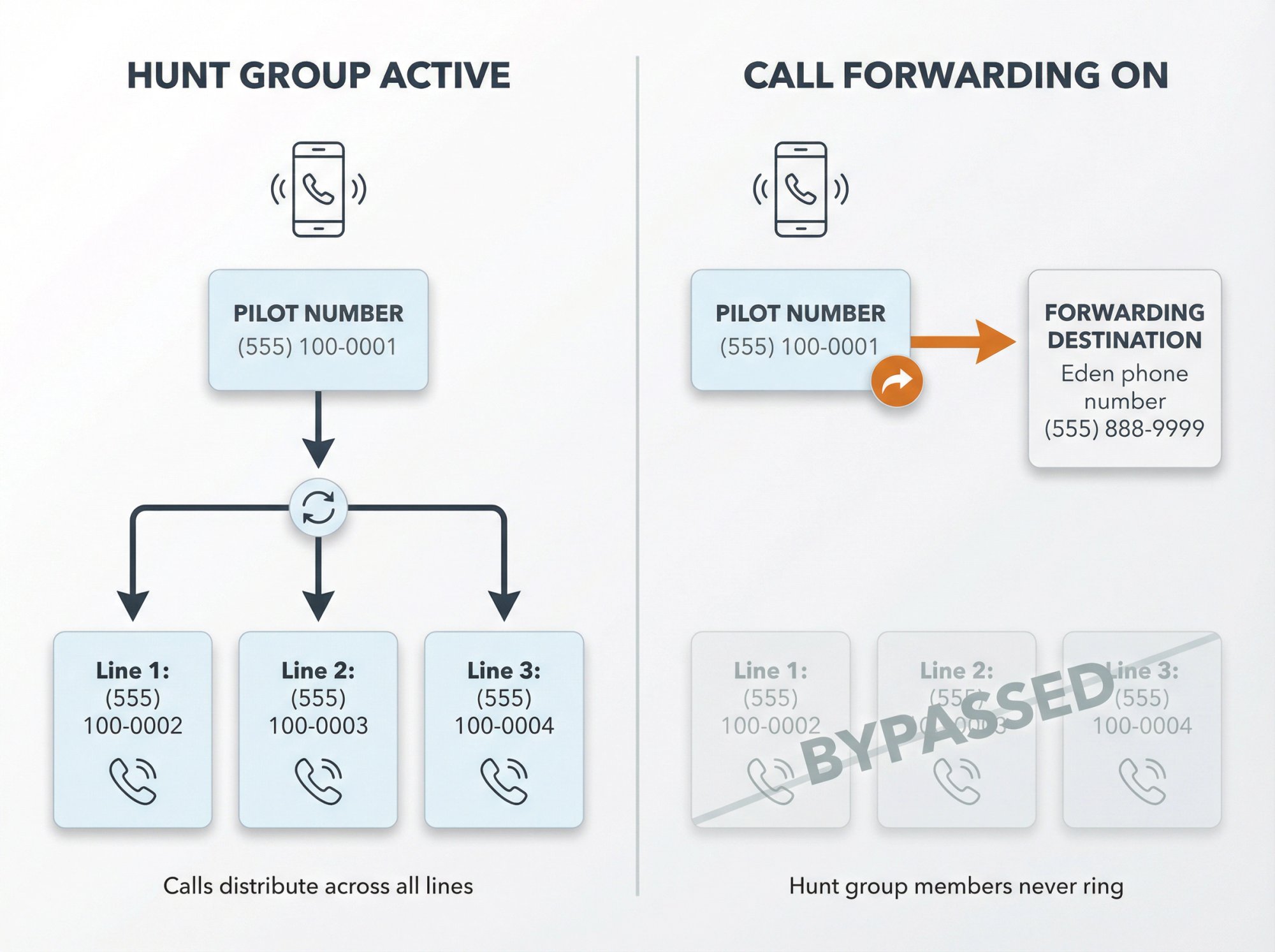
Hunt groups route calls across multiple phone lines in sequence or simultaneously. Call forwarding interacts with hunting in specific ways that can cause confusion.
The Rules#
Forwarding on the main/pilot number typically overrides hunting. If the main number forwards all calls, those calls will never hunt to the secondary lines.
Forwarding on individual hunt group member lines usually doesn't work as expected. Hunting takes priority. When a call hunts to that line, the hunting mechanism controls the call, and individual line forwarding may be bypassed.
Best Practice#
If you have a hunt group and want to use call forwarding for after-hours or overflow coverage, apply forwarding to the pilot number (the main line callers dial). This ensures that when forwarding is on, all calls go to your chosen destination without hunting at all.
If you need more complex routing (like hunting during business hours but forwarding after hours), use Call Scheduler to automatically switch the pilot number's configuration based on time of day.
How to Integrate Spectrum Forwarding with Eden AI Receptionist#
Many small businesses use Spectrum Business Voice because it's reliable and affordable. But even with call forwarding, you're just moving the problem from one phone to another. If you forward to your cell and you're busy, calls still go to voicemail.
That's where Eden changes the equation. Eden is an AI receptionist that answers calls 24/7, speaks naturally with callers, captures lead information, and can even schedule appointments or transfer urgent calls to you. It integrates seamlessly with Spectrum call forwarding.
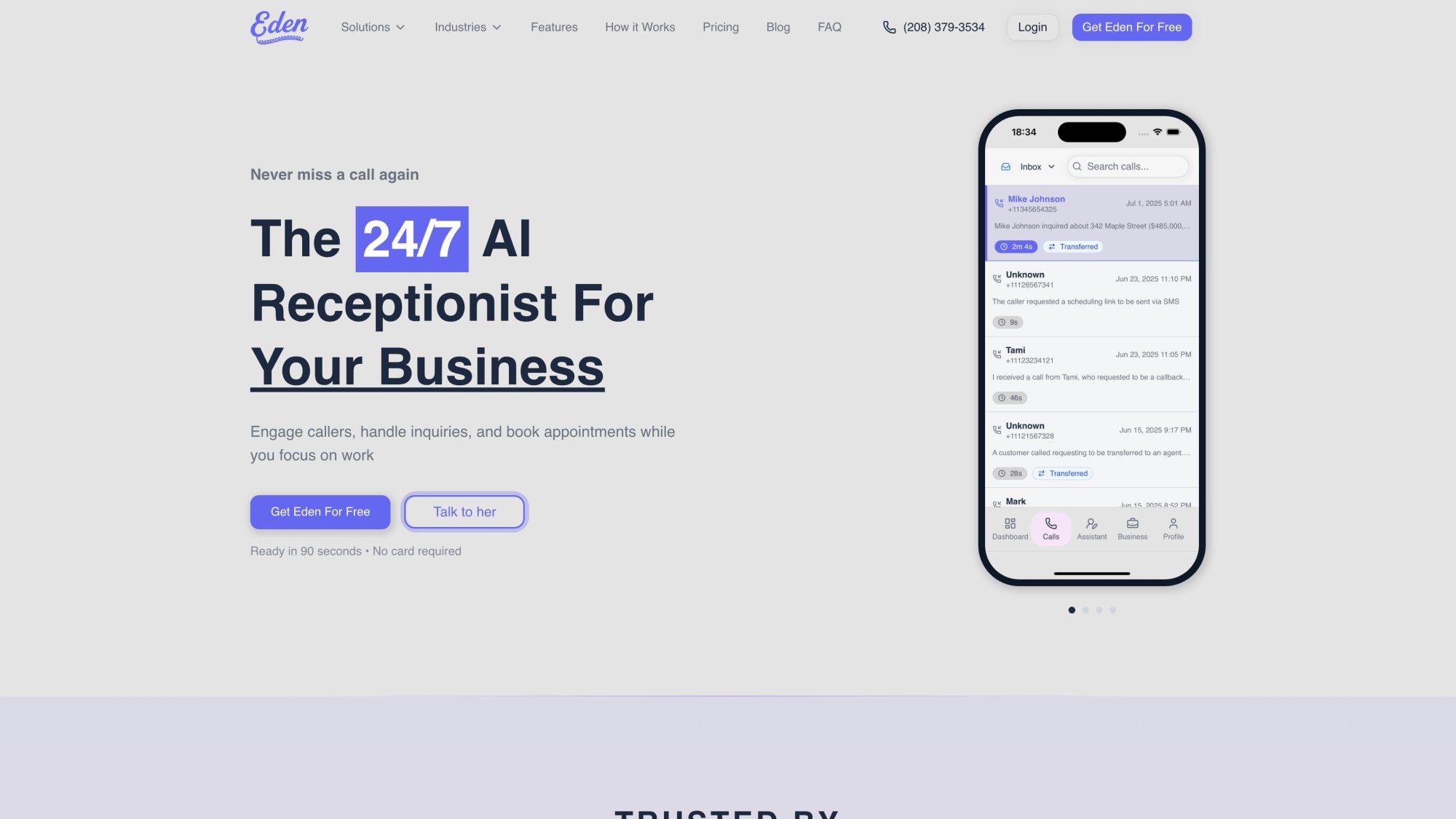
How to Forward Spectrum Business Voice to Eden#
① Sign up for Eden at ringeden.com and complete the quick setup (5 minutes)
② Eden will provide you with a dedicated phone number (your Eden number)
③ Set up Spectrum call forwarding using one of these strategies:
Option A: Forward All Calls to Eden (Simplest)
Use this if you want Eden to answer everything:
-
Dial *72 from your Spectrum phone
-
Enter your Eden number
-
Wait for confirmation
Now all calls go directly to Eden. You'll receive instant notifications and call summaries via SMS and email.
Option B: Forward Only Missed Calls to Eden (Best for Daily Use)
Use this if you want to answer when you're available but have Eden as a safety net:
-
Enable Forward Busy (*90 + Eden number) so Eden answers if you're on another call
-
Enable Forward No Answer (*92 + Eden number) so Eden answers if you don't pick up within a few rings
This way, you still handle calls you can answer, but nothing goes to voicemail.
Option C: Schedule After-Hours Coverage with Eden
Use Call Scheduler to automatically forward to Eden outside business hours:
-
Configuration 1 (Business Hours): Direct ring or conditional forwarding to your cell
-
Configuration 2 (After Hours, Weekends, Holidays): Forward all calls to Eden
-
Set the schedule to switch automatically
This gives you complete after-hours coverage without manual intervention.
Why This Works Better Than Traditional Voicemail#
Traditional voicemail has a fatal flaw: 80% of callers hang up without leaving a message. Even the ones who do leave messages often provide incomplete information or don't expect a callback.
When you forward to Eden:
Every caller gets immediate engagement from a natural-sounding AI that understands context
Lead information is captured instantly (name, callback number, reason for calling, urgency)
You get real-time notifications with full call summaries and transcripts
Callers can book appointments on the spot if you enable Eden's scheduling feature (available on Pro plan)
Urgent calls can be transferred to your cell or on-call staff based on rules you define
Instead of playing phone tag with voicemail messages, you start each day knowing exactly who called, what they needed, and having their contact information ready for follow-up.
Eden Features That Work with Spectrum Forwarding#
Eden includes several features specifically designed for businesses using call forwarding:
Eden automatically detects and blocks robocalls and spam before they consume your minutes or disrupt your day. Only legitimate business calls get through.
Bilingual Support (English and Spanish)
Eden seamlessly switches between English and Spanish based on the caller's language. This expands your market reach without hiring bilingual staff.
For urgent situations, Eden can transfer calls to your mobile or on-call technician based on keywords and context. You define the rules (like "transfer emergency plumbing calls to my cell after 5 PM").
Calendar Integration
Connect Eden to Google Calendar or Microsoft Outlook. When a caller requests an appointment, Eden checks your availability and books it directly into your calendar during the call.
Searchable Call History
Every call is recorded, transcribed, and searchable. Need to find that conversation from two weeks ago about a specific project? Search the transcript instantly.
Eden offers a 30-minute free trial with no credit card required. Test it with Spectrum forwarding risk-free to see if it fits your workflow.
Does Spectrum Charge for Call Forwarding?#
Spectrum includes basic call forwarding features at no extra monthly charge in most markets. However, pricing can vary by location and legacy billing footprint (Charter, Time Warner Cable, or Bright House territories).
Potential Charges to Verify#
Some Spectrum Business Voice price guides list individual call forwarding features as optional add-ons with monthly fees:
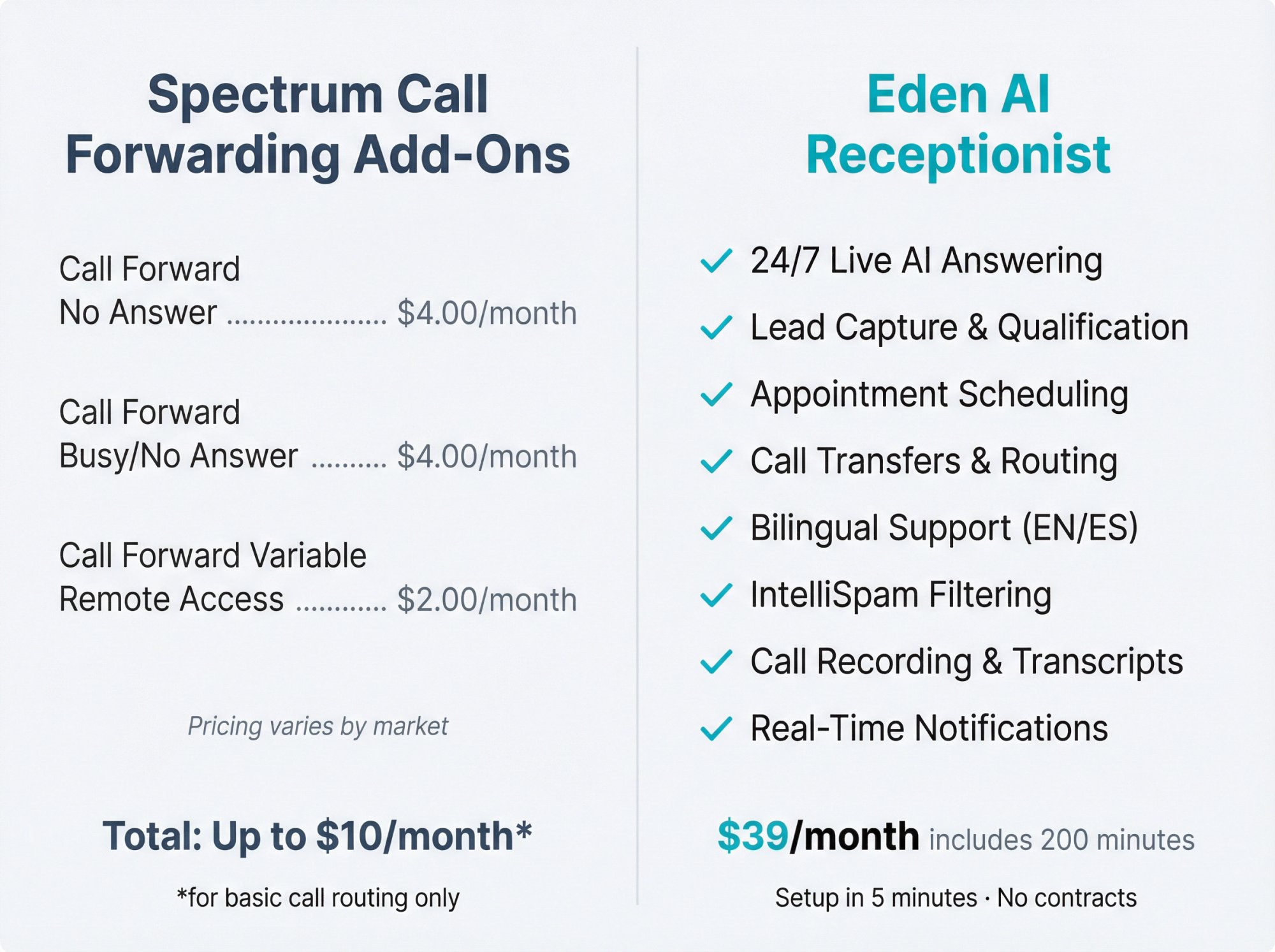
| Feature | Potential Monthly Cost |
|---|---|
| Call Forward No Answer | $4.00/month |
| Call Forward Busy/No Answer | $4.00/month |
| Call Forward Variable Remote Access | $2.00/month |
These charges may or may not apply to your account. Spectrum pricing varies by market and package. Many business voice plans include all forwarding features at no additional cost.
Before committing to a forwarding-based workflow, check your current bill or contact Spectrum Business support to confirm:
① Which forwarding features are included in your plan
② Any per-feature charges that might apply if you activate them
If your plan does charge extra for conditional forwarding, compare the cost of those add-ons against the cost of a solution like Eden. Eden's Plus plan starts at $39/month for 200 minutes and includes features far beyond simple call forwarding (AI answering, lead capture, spam filtering, scheduling, transfers).
For comparison, human virtual receptionist services like Ruby charge significantly more:
Ruby's pricing ranges from $245/month for 50 minutes up to $1,695/month for 500 minutes—making AI solutions like Eden a cost-effective alternative for small businesses that need 24/7 coverage without breaking the bank.
Best Practices for Reliable Call Forwarding#
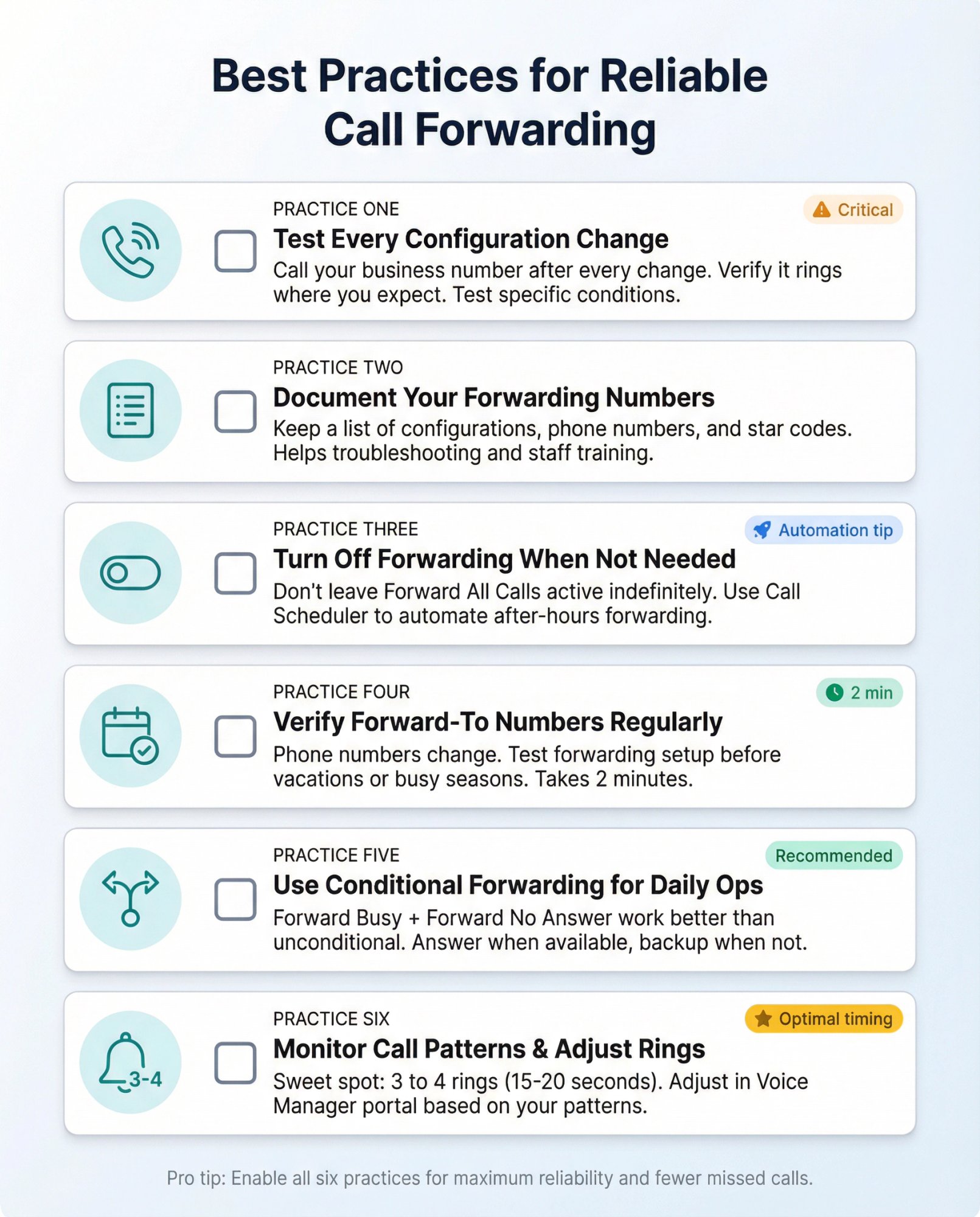
Test Every Configuration Change#
Whenever you activate, deactivate, or modify call forwarding settings:
① Call your business number from another phone
② Verify it rings where you expect
③ If using conditional forwarding, test the specific conditions (make your line busy, or let it ring without answering)
Don't assume forwarding works without testing. A misconfigured setup means lost calls.
Document Your Forwarding Numbers#
Keep a list of:
-
What each forwarding configuration does
-
Which phone numbers you forward to
-
Star codes you use most often
This helps when troubleshooting or when training staff to manage forwarding.
Turn Off Forwarding When You Don't Need It#
Don't leave "Forward All Calls" active indefinitely if you only needed it for a specific situation. Forgetting it's on means your desk phone never rings, which can be confusing when you're back in the office expecting calls.
Use Call Scheduler to automate this. Schedule automatic forwarding for after-hours and weekends so you don't have to remember to toggle it manually.
Verify Your Forward-To Numbers Regularly#
Phone numbers change. Cell carriers port numbers. Before relying on call forwarding for an important period (like a vacation or busy season):
① Call the forward-to number manually to make sure it works
② Test the forwarding setup with a real incoming call
This takes 2 minutes and prevents the nightmare scenario where you think calls are being handled but they're actually ringing a disconnected number.
Use Conditional Forwarding for Daily Operations#
For normal business operations, Forward Busy and Forward No Answer work better than unconditional forwarding. They let you answer directly when you're available while ensuring backup coverage when you're not.
Only use "Forward All Calls" when:
-
You're completely out of the office for an extended period
-
You want a dedicated answering service or AI to handle everything
-
You're temporarily closing and need all calls routed elsewhere
Monitor Call Patterns and Adjust Rings#
If you're using Forward No Answer, pay attention to how many rings it takes before forwarding activates. Too few rings means you might not have time to reach the phone. Too many rings frustrates callers.
The sweet spot is typically 3 to 4 rings (about 15 to 20 seconds). Adjust in the Voice Manager portal based on your actual call patterns.
Frequently Asked Questions#

Does Spectrum charge extra for call forwarding?
Basic call forwarding is usually included at no extra cost in most Spectrum Business Voice plans. However, pricing varies by market and legacy footprint. Some price guides list individual forwarding features (like Forward No Answer) as $4/month add-ons. Check your specific plan details or contact Spectrum Business support to confirm whether your account includes forwarding at no charge or has per-feature fees.
Can I forward calls to an international number?
No. Spectrum Business Voice only allows forwarding to domestic U.S. phone numbers (10-digit numbers including toll-free). International forwarding is not supported. If you need international coverage, consider forwarding to a U.S.-based answering service that can route calls internationally after answering.
Will voicemail still work when forwarding is on?
No. When call forwarding is active, incoming calls bypass Spectrum voicemail completely. The forwarded destination handles the call. If that number doesn't answer, the call may go to that number's voicemail instead of returning to Spectrum. To restore Spectrum voicemail functionality, turn off call forwarding.
Can I set different forwarding numbers for different times of day?
Yes, using Call Scheduler. Create multiple configurations (one for business hours, one for after-hours, etc.) with different forwarding settings for each. Then schedule when each configuration should activate. The system automatically switches based on your schedule.
What's the difference between Forward Busy and Forward No Answer?
Forward Busy only forwards calls that arrive when your line is already in use (you're on another call). If your line is free, calls ring normally.
Forward No Answer forwards calls that you don't pick up within a set number of rings. Your phone rings first, giving you a chance to answer. If you don't pick up in time, the call forwards.
You can enable both simultaneously for comprehensive coverage.
Why does my phone ring briefly even when forwarding is on?
This is called a "ring splash." Spectrum's network gives a quick half-ring on your phone to notify you that a call came in and was forwarded. This is normal behavior. Don't pick up during this brief ring because the call isn't there anymore. It's already routing to your forward-to number.
Can I forward to a mobile phone?
Yes. Mobile phones work perfectly as forwarding destinations as long as they're U.S. numbers. Enter the full 10-digit mobile number (including area code) when setting up forwarding. Keep in mind that forwarded calls will use minutes on the mobile plan if it's not unlimited.
Will callers know their call was forwarded?
Usually not. The call rings at the forwarded destination as if the caller dialed that number directly. However, caller ID might show your original Spectrum business number instead of the caller's actual number, depending on how your forwarding is configured and what the destination phone supports.
How do I forward calls remotely when I'm not in the office?
Use the Spectrum Business Voice Manager portal at business.spectrum.com. Log in from any device with internet access and manage all forwarding settings through the web interface. This works from anywhere and doesn't require physical access to your office phone.
Can I use call forwarding with a hunt group?
Yes, but with limitations. Forwarding on the main/pilot number typically overrides hunting (calls forward instead of hunting to other lines). Forwarding on individual hunt group member lines often doesn't work as expected because hunting takes priority. For best results, apply forwarding to the pilot number or use Call Scheduler to manage when hunting versus forwarding should be active.
What happens if the forwarding number doesn't answer?
The call follows whatever call handling the destination number has configured. If you forward to a cell phone that doesn't answer, the call will go to that cell phone's voicemail. It will NOT return to your Spectrum voicemail. This is why forwarding to an always-available solution like Eden ensures every call gets answered.
Can I forward some callers to one number and others to a different number?
Yes, using Selective Call Forwarding. You create a list of specific phone numbers that should forward to a designated destination. All other calls ring your desk phone normally. This is useful for VIP clients or specific situations where certain callers need different handling.
Do I need to do anything special to forward to an AI receptionist like Eden?
No. From Spectrum's perspective, forwarding to an AI receptionist works exactly like forwarding to any other phone number. You simply enter the AI service's phone number (Eden provides you with a dedicated number during signup) and activate forwarding using star codes or the portal. The AI service handles the call from there.
Will forwarding mess up my auto attendant or IVR menu?
Call forwarding can take precedence over auto attendant behavior. If you have unconditional forwarding active (Forward All Calls), callers will be forwarded before they hear your menu. To keep your auto attendant working, either disable unconditional forwarding or route specific auto attendant menu options to forwarding destinations instead of forwarding the main line.
Get Complete Call Coverage Today#
You now know how to set up every type of call forwarding available on Spectrum Business Voice. Whether you need after-hours coverage, overflow handling during busy times, or complete call management automation, the tools are built into your phone system.
Here's What to Do Next:#
① Enable call forwarding in your Voice Manager portal if you haven't already (one-time setup)
② Choose your forwarding strategy:
-
Quick activation/deactivation using star codes (*72/*73)
-
Conditional forwarding for daily operations (*90/*92)
-
Scheduled automatic forwarding with Call Scheduler
③ Test your configuration by calling your business number from another phone
④ Consider an AI receptionist for complete 24/7 coverage
If you're ready to eliminate missed calls entirely, Eden integrates seamlessly with Spectrum call forwarding to answer every call, capture every lead, and keep your business running around the clock. Start your free 30-minute trial at ringeden.com and see how AI answering transforms your call management.
No more voicemail. No more missed opportunities. Just reliable, professional call coverage that works the way your business needs it to work.
Ready to Transform YourCustomer Experience?
Join hundreds of businesses using Eden AI to handle calls, book appointments, and provide 24/7 customer support.