How to Forward Calls on AT&T Business? (2026 Guide)
Set up AT&T Business call forwarding in minutes. Get verified star codes, portal steps, and wireless instructions for all AT&T phone services.
January 20, 2026
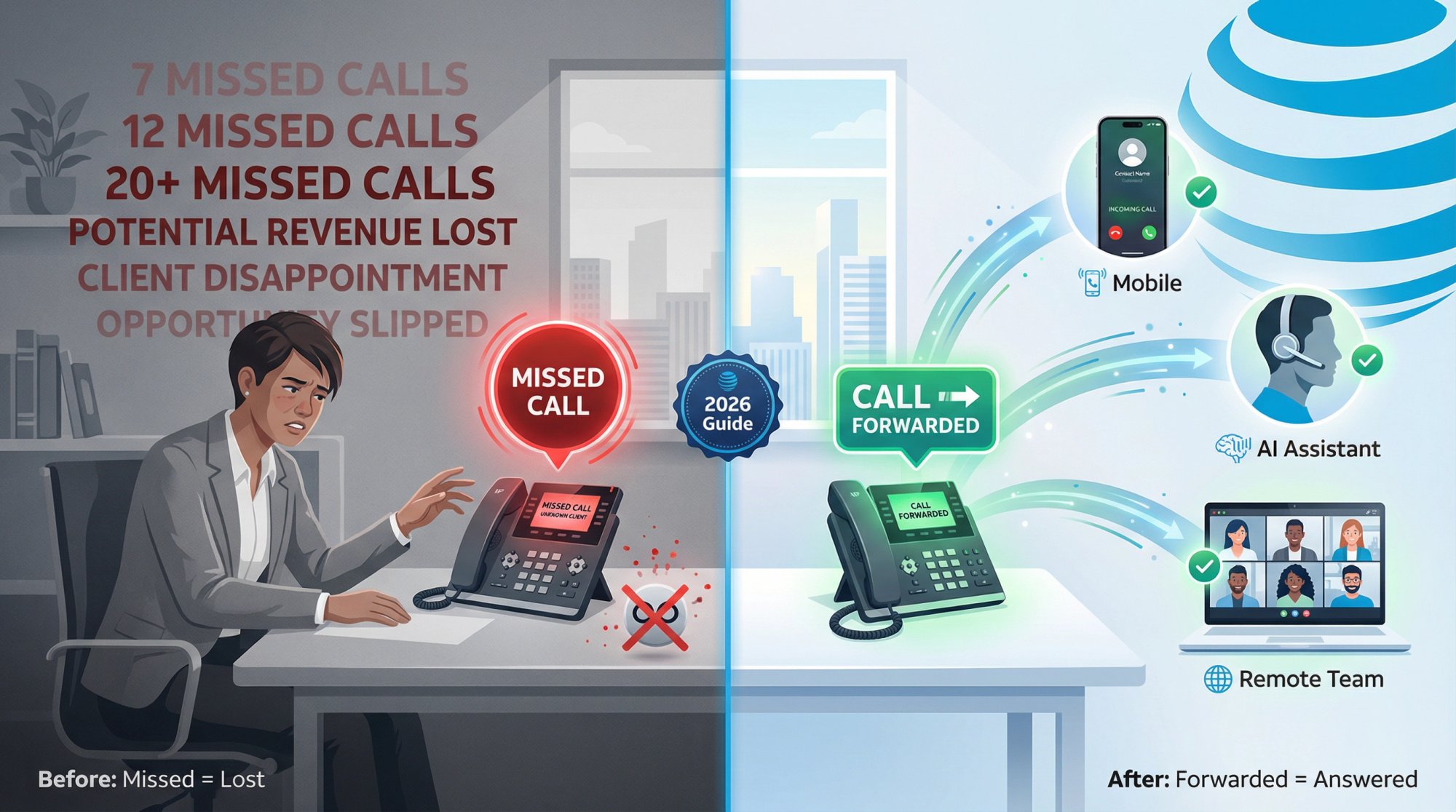
Missing calls can mean missing business. Most callers who reach voicemail won't leave a message. They hang up and call someone else. If your company uses AT&T for phone service, you can prevent those lost opportunities by forwarding your calls to a number that will be answered.
This comprehensive guide covers exactly how to forward calls on AT&T Business lines for 2026, with verified instructions for traditional lines, Office@Hand, and wireless. We'll show you how to forward all calls immediately, how to forward calls only when you can't answer, how to turn it off, costs, troubleshooting, and tips to get the most out of AT&T's call forwarding features.
What You'll Learn#
By the end of this guide, you'll be able to:
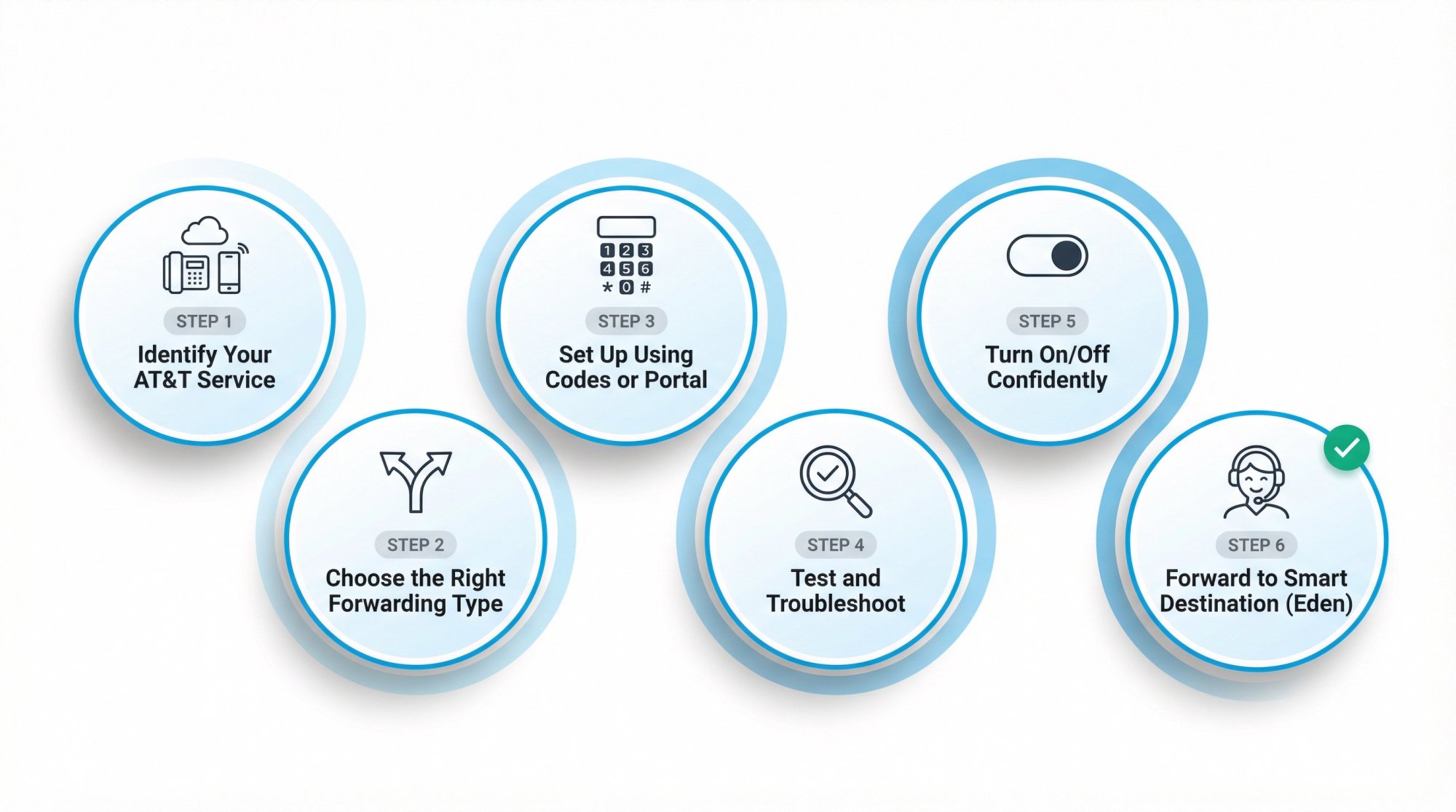
→ Identify which AT&T service you have (traditional, Office@Hand, or wireless)
→ Choose the right forwarding type for your needs
→ Set up forwarding using the correct codes or portal
→ Test and troubleshoot your setup
→ Turn forwarding on and off without guessing
→ Forward to a smart destination (like Eden) that actually helps callers
Quick Start: AT&T Call Forwarding Codes#
If you have an AT&T business desk phone on a traditional line:
-
Forward all calls: Pick up handset → dial
*72→ enter forward-to number → wait for confirmation → hang up -
Turn off forwarding: Pick up → dial
*73#
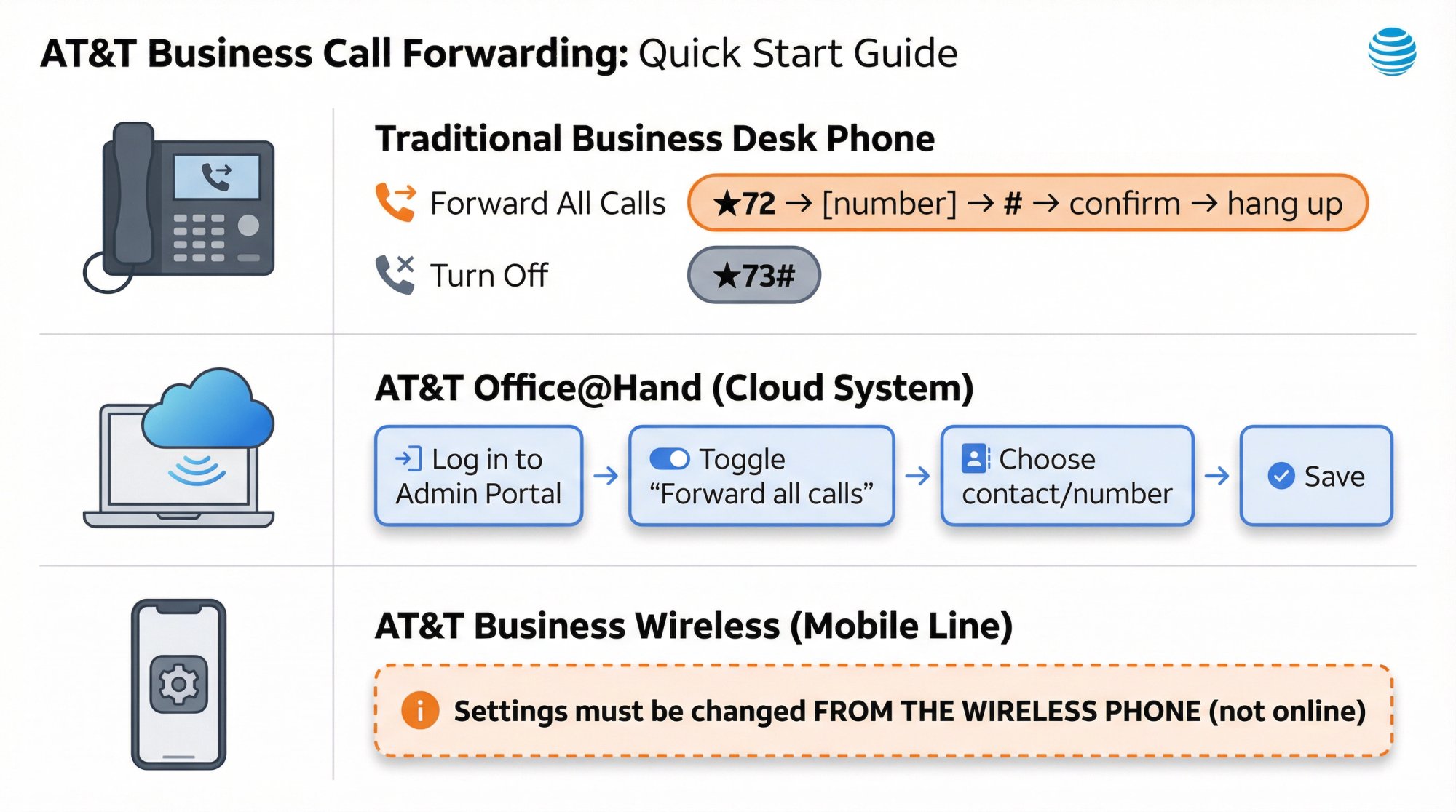
If you have AT&T Office@Hand (cloud phone system):
- Log in to Admin Portal → toggle Forward all calls → choose Contact or phone number → save
If your business number is on a mobile line (AT&T Business Wireless):
- Settings must be changed from the wireless phone (not online)
Which AT&T Business Service Do You Have?#
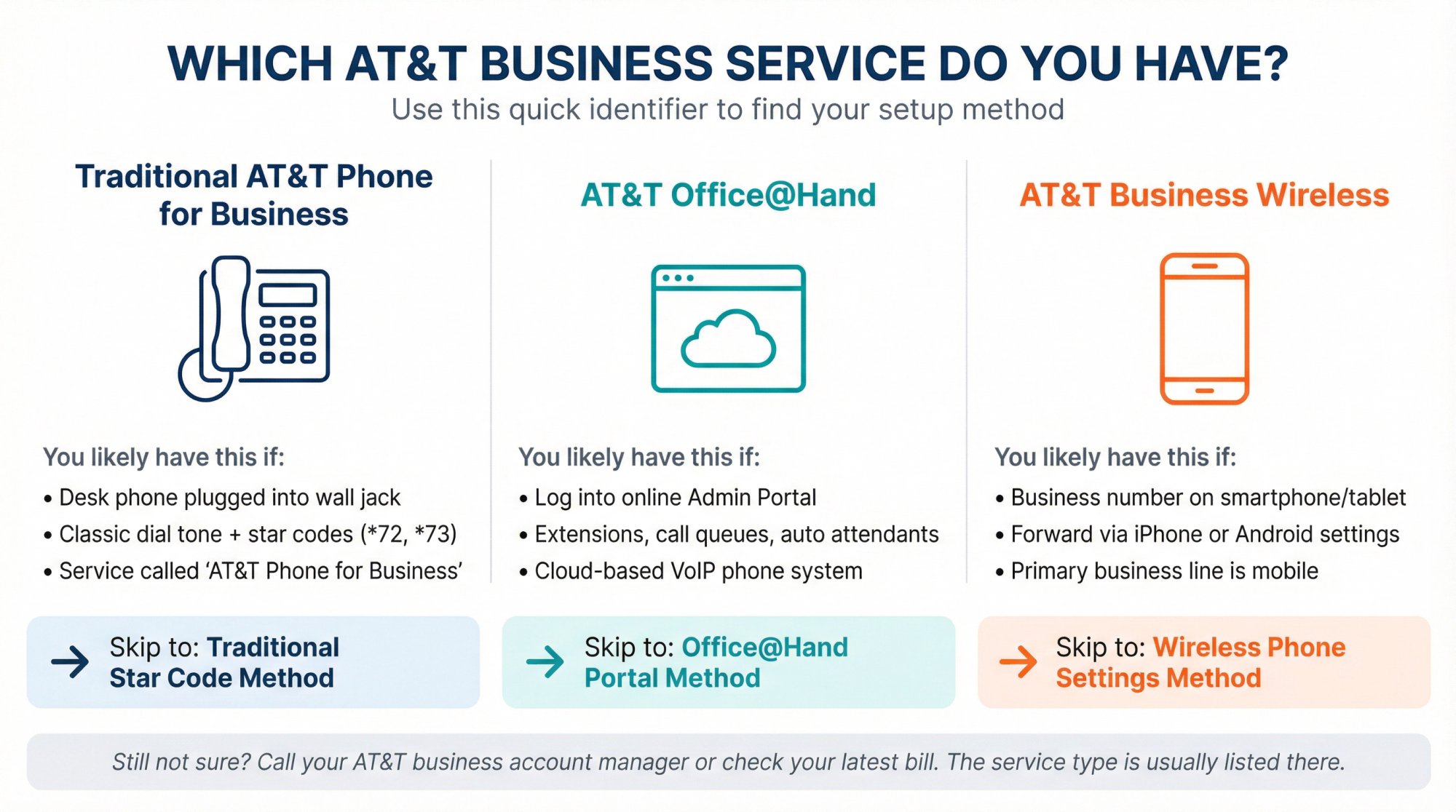
The setup method depends entirely on which AT&T service type you're using. Use this quick identifier:
Traditional AT&T Phone for Business#
You likely have this if:
• You have a desk phone plugged into a wall jack or on-premises phone system
• You get a classic dial tone and use star codes like *72 or *73
• Your service is described as "AT&T Phone for Business" or "AT&T Local/Long Distance"
➡️ Skip to: Traditional Star Code Method
AT&T Office@Hand#
You likely have this if:
• You log into an online Admin Portal to manage phone features
• You have extensions, call queues, auto attendants, and work/after-hours rules
• Your phone system is cloud-based with VoIP
➡️ Skip to: Office@Hand Portal Method
AT&T Business Wireless#
You likely have this if:
• The business number lives on a smartphone or tablet line
• You forward using iPhone or Android call settings
• Your primary business line is mobile
➡️ Skip to: Wireless Phone Settings Method
Still not sure? Call your AT&T business account manager or check your latest bill. The service type is usually listed there.
AT&T Call Forwarding Types: Which One Do You Need?#
AT&T offers several forwarding options. Choosing the right one matters because it determines when calls get redirected and when they ring through to you.
Choosing the right type determines when your calls get answered.
Unconditional Call Forwarding (Forward All Calls)#
What it does: Every incoming call is redirected to another number. Your AT&T phone won't ring at all (calls go straight to the destination).
Use when:
-
You're closed (after hours/weekends/holidays)
-
You want a receptionist service or AI answering system like Eden to answer first-ring, always
-
You're on vacation and want everything routed elsewhere
-
You want another number to handle all calls 24/7
Conditional Call Forwarding (Forward Missed Calls Only)#
What it does: Only forwards calls you can't take. Your phone rings normally, but if you don't answer or your line is busy, the call automatically forwards to a backup number.
Use when:
-
You want to try answering first but have a safety net
-
You want phones to ring normally during business hours
-
You need backup coverage for missed calls only
-
You're implementing the "answer when I can, but never miss a lead" setup
AT&T supports two main conditional types:
• No Answer Call Forwarding: Forwards after a set number of rings (typically 4 rings or about 20 seconds)
• Busy Call Forwarding: Forwards when your line is busy or you're on another call
Pro tip: Enable both busy and no-answer forwarding to the same destination. This creates complete coverage so no call ever hits voicemail.
Safe Call Forwarding (Outage Protection)#
What it does: Forwards calls during service disruptions, power outages (when battery backup is exhausted), or network loss.
Use when:
-
You're in a storm-prone area
-
You need business continuity during outages
-
You want protection against network or power failures
Exclusive Call Forwarding (VIP List Routing)#
What it does: Forwards calls from specific numbers (up to 20) to a designated destination. Everyone else rings through normally.
Use when:
-
You have VIP clients whose calls must always reach a specific number
-
You need special routing for urgent callers (top clients, emergency contacts, on-call dispatch)
-
You want priority routing for a short list of important contacts
| Forwarding Type | When Calls Forward | Best For | Code (Traditional) |
|---|---|---|---|
| Unconditional | All calls, immediately | After-hours coverage, vacations, 24/7 answering | *72 |
| Busy | When you're on another call | Full coverage during calls | *90 |
| No Answer | After ~4 rings | Backup when you can't pick up | *92 |
| Safe | During outages | Business continuity | *372 |
| Exclusive | VIP callers only | Priority routing | *63# |
How to Forward All Calls on AT&T Traditional Lines (Star Code *72)#
AT&T's star-code documentation was last updated July 15, 2025.
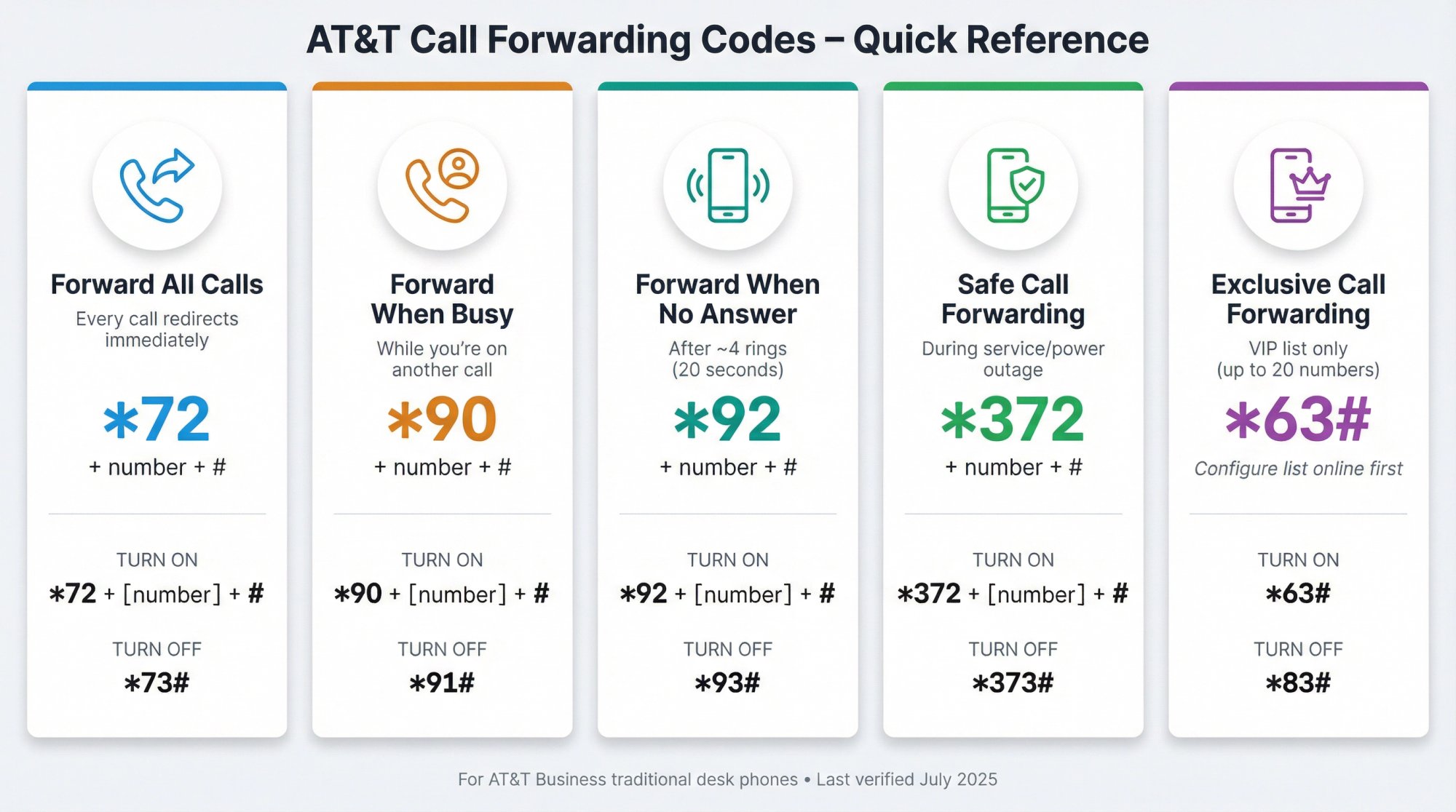
AT&T Business Call Forwarding Codes (Complete List)#
| What you want | What it does | Turn ON | Turn OFF |
|---|---|---|---|
| Forward all calls | Sends every incoming call to another number | *72 + number + # | *73# |
| Forward when busy | Forwards calls when your line is in use | *90 + number + # | *91# |
| Forward when no answer | Forwards missed calls after ringing | *92 + number + # | *93# |
| Safe Call Forwarding | Forwards during service/power disruption | *372 + number + # | *373# |
| Exclusive Call Forwarding | Forwards calls from a list (up to 20 numbers) | Configure list online + *63# | *83# |
Step-by-Step: How to Activate Call Forwarding on AT&T#
Step-by-step process:
① Listen for dial tone: Pick up your office phone's handset (or turn off speaker mute) and ensure you have a dial tone
② Dial the call forward code: Press *72 on the keypad (or 72# on some systems)
③ Enter the forwarding number: Immediately enter the complete phone number you want calls forwarded to:
-
Include the area code
-
For long-distance numbers, include 1 before the area code
-
Example: If forwarding to (212) 555-1234, dial
*72then12125551234
④ End with # and wait for confirmation: After entering the number, press the # key to signal you're done
⑤ Listen for confirmation: You'll hear one of these:
-
A quick double-beep or confirmation tone
-
A recorded message confirming call forwarding is active
-
The system may call the number you entered (if someone or voicemail answers at the forward-to number, that confirms forwarding is in effect)
⑥ Hang up
⑦ Test it: From a different phone, call your AT&T number. It should ring through to the forwarded destination
Critical detail: AT&T explicitly states that forwarding activates only if the destination answers the activation call. If the destination is busy or doesn't answer, forwarding will not activate. You'll need to repeat the steps.
How to Turn OFF All-Call Forwarding:
-
Simply dial
*73#from your phone -
Listen for confirmation tone that forwarding is off
-
Test by calling your number to verify it rings back on your device
How to Forward Calls When Busy or Unanswered (Conditional Forwarding)#
This is the "safety net" approach. Your phone rings first, but if you can't answer, the caller still reaches someone instead of voicemail.
Forward When Line is Busy:
• Activate: Pick up your phone and dial *90, then the 10-digit forward-to number, then #
• Deactivate: Dial *91#
• What it does: If you're on another call or manually declined, the new call forwards to your backup number
Forward When No Answer:
• Activate: Dial *92, then the 10-digit forward-to number, then #
• Deactivate: Dial *93#
• What it does: If you don't pick up after about 4 rings (roughly 20 seconds), the call forwards automatically
• Note: You cannot set the exact ring count on traditional lines (it's preset by AT&T)
Every missed call is a potential lost customer.
Best practice: Enable both *90 and *92 to ensure any missed call (busy or unanswered) forwards out instead of going to voicemail.
How to Set Up Safe Call Forwarding (Outage Protection)#
If you're in a storm-prone area or need business continuity during disruptions:
• Activate: Dial *372 + forwarding number + #
• Deactivate: Dial *373#
• What it does: Forwards calls during network outages or power outages (when battery backup is exhausted)
How to Set Up Exclusive Call Forwarding (VIP List Routing)#
For priority routing of specific callers:
-
Log into your AT&T Business online account
-
Configure your VIP list (up to 20 numbers)
-
Dial
*63#to activate -
Dial
*83#to deactivate
Warning: AT&T notes that stored numbers can be lost when deactivating certain list-based forwarding features. Document your VIP list separately.
AT&T Call Forwarding Number Format (Critical for Success)#
AT&T's forwarding behavior varies based on call type (local vs. long distance). Use this practical rule:
Standard format that works in most U.S. business setups:
-
Try 10 digits first: area code + number (e.g.,
2125551234) -
If that fails, try 1 + 10 digits:
12125551234
For local calls within your area code:
-
You may only need the 7-digit number
-
But using 10 digits (with area code) is safer and more reliable
Always include the "1" prefix for long-distance numbers to ensure proper routing through the network.
AT&T Voicemail vs. Call Forwarding: What's the Difference?#
If you want calls to go to voicemail instead of forwarding:
-
Log into your AT&T Business online account
-
Navigate to voicemail settings
-
Ensure No Answer Call Forwarding and Busy Call Forwarding are set to "Forward to Voice Mail"
-
Your voicemail access number / CFN (Call Forwarding Number) is visible in your online account
Note: Calling your voicemail access number may incur local/toll/usage charges depending on where you're calling from.
How to Forward Calls on AT&T Office@Hand (Cloud Portal Method)#
AT&T Office@Hand is a cloud-based system with different controls than traditional star codes. You manage forwarding through portals and apps.
URL: AT&T Office@Hand Admin Portal (login required)
Location: Office@Hand Portal Method section
Instructions: Portal requires authentication. To capture manually:
-
Log into AT&T Office@Hand Admin Portal with valid credentials
-
Navigate to call forwarding settings (Forward all calls toggle)
-
Ensure viewport is 1920x1080
-
Hide user info/account switcher elements
-
Capture interface showing Forward all calls toggle and destination options
Note: Current AI illustration (image-07) serves as acceptable substitute showing portal workflow.
How to Forward All Calls in Office@Hand (With Scheduling)#
AT&T Office@Hand allows you to route calls to:
-
Voicemail
-
A coworker's extension
-
An external phone number (answering service, cell phone)
-
Call queues
-
Announcements
-
IVR menus
And you can schedule it with start/end dates.
In the Admin Portal (Your Own Extension):#
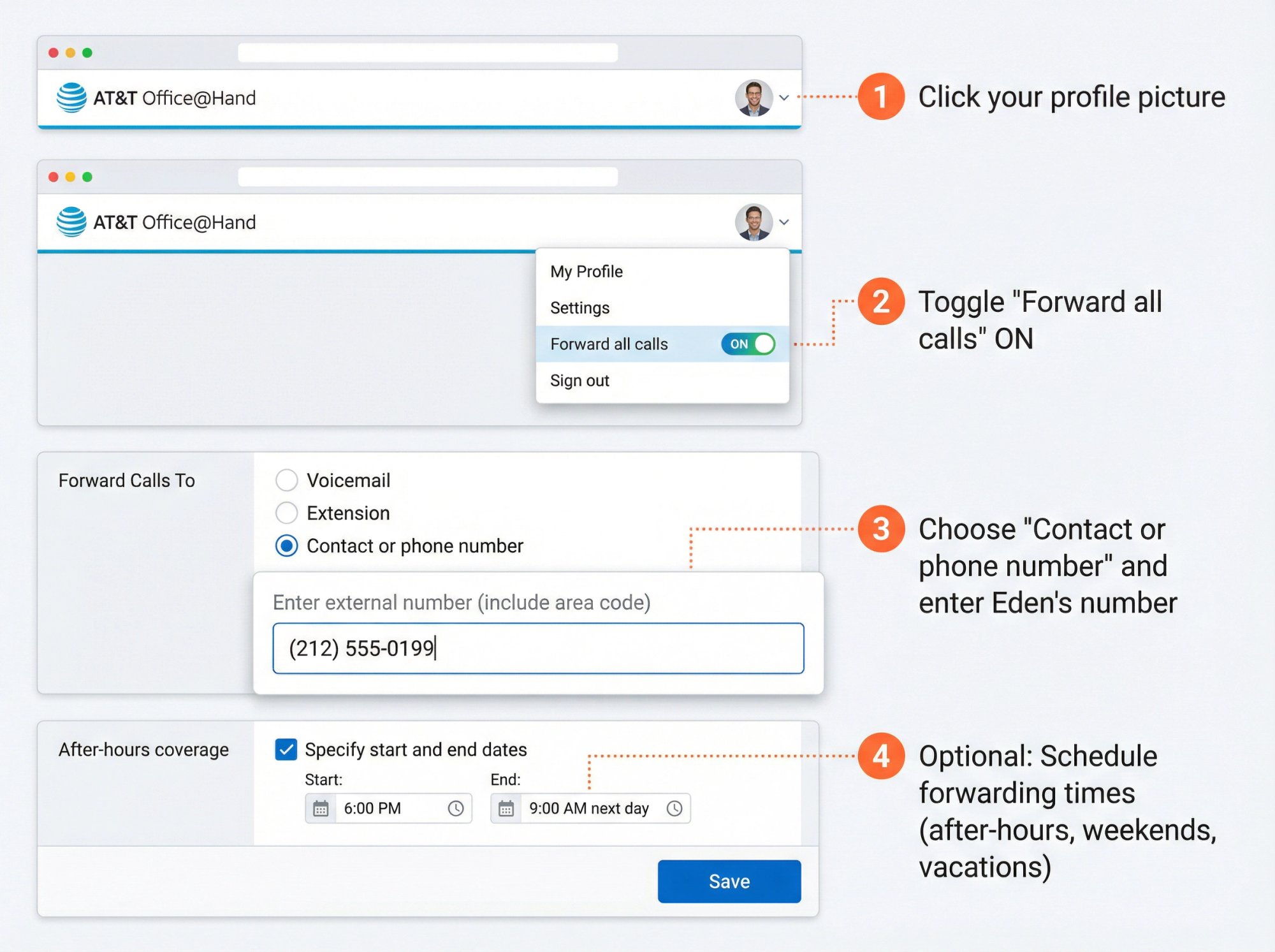
① Sign in to the AT&T Office@Hand Admin Portal
② Click your profile picture (top right)
③ Turn on Forward all calls
④ Under "Where would you like to forward your calls?", choose Contact or phone number
⑤ Enter the external number (include area code)
⑥ (Optional) Check "Specify start and end dates" to set forwarding times:
-
Vacation coverage
-
Break periods
-
Weekend forwarding
⑦ Click Save
Important notes:
-
You may need call handling permission to use Forward all calls
-
If both Forward all calls and Do Not Disturb are enabled, calls follow your Forward all calls settings (Forward wins)
As an Admin (Forward Someone Else's Calls):#
-
Sign in to Admin Portal
-
Go to Users → User List (or Users with Extensions)
-
Select the user whose calls you want to forward
-
Enable Forward all calls for that user
-
Choose destination and save
On Desktop/Web and Mobile Apps:#
The same functionality is available in:
-
Desktop/Web: Profile picture → Forward all calls → choose destination → Save
-
Mobile: Profile picture → Forward all calls → choose destination → Save
How to Forward Calls When Phones Are Offline (Office@Hand Outage Routing)#
If you use Office@Hand with desk phones/DigitalLines and worry about internet outages:
AT&T Office@Hand includes an "unreachable phones" forwarding behavior:
-
Calls redirect when extension endpoints are offline
-
Once service returns, calls resume ringing to original phones
Requirements:
-
Certain forwarding destinations can disable this feature
-
Some plan tiers may be required
-
Check AT&T Office@Hand support for full details
How to Forward Calls on AT&T Business Wireless (Mobile Phone Method)#
If your business number lives on a smartphone (AT&T Business Wireless), the setup is different.
Critical AT&T Wireless Rules:
-
You cannot manage call forwarding online (must change from the wireless phone)
-
Forwarded calls are billed
-
Long-distance/roaming charges can apply depending on your plan
-
You cannot forward calls to an international number
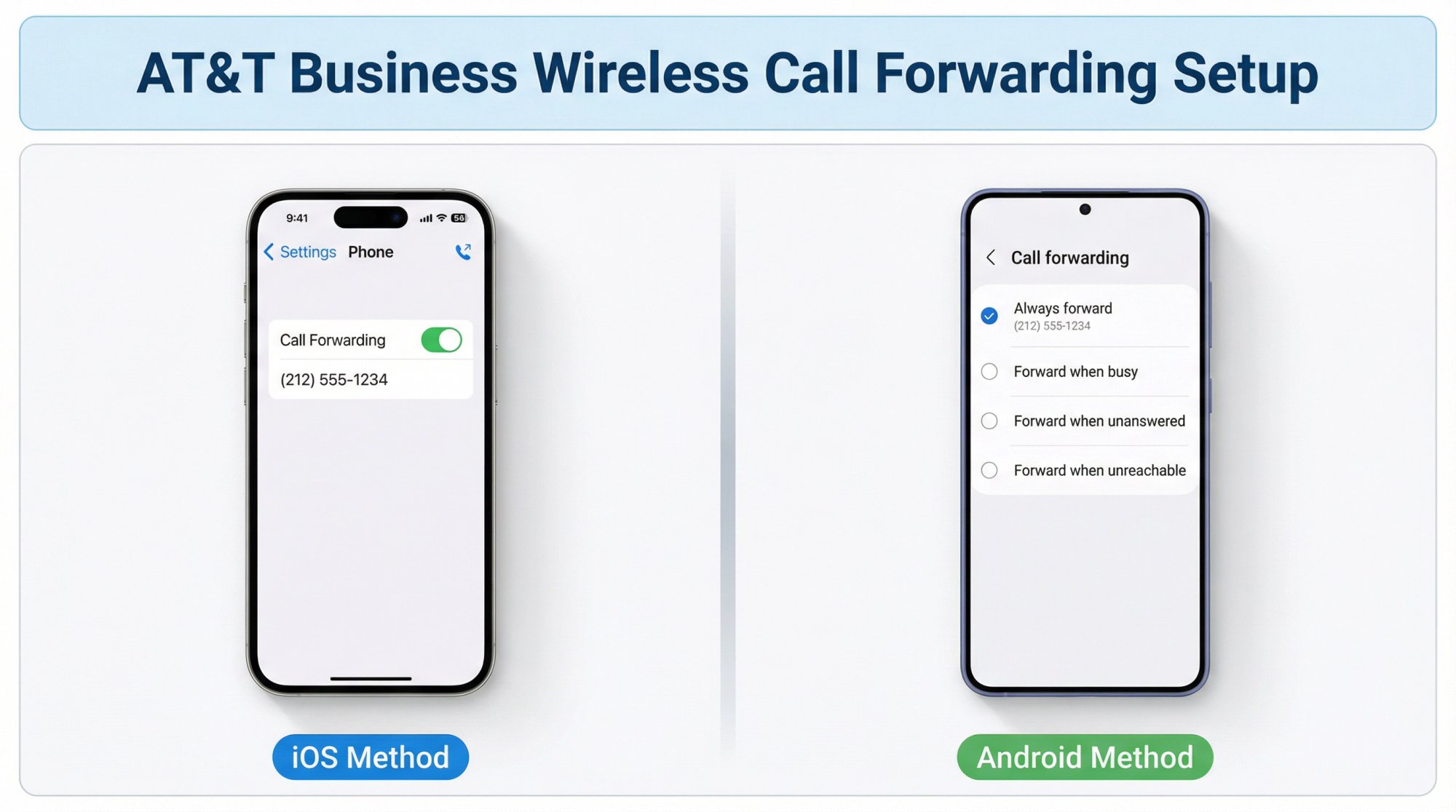
iPhone: How to Forward All Calls#
-
Open Settings
-
Tap Phone
-
Tap Call Forwarding
-
Toggle On
-
Enter your forward-to number (10 digits with area code)
-
A call forwarding icon will appear in your status bar when active
To disable:
- Return to Settings → Phone → Call Forwarding → Toggle Off
iPhone Live Voicemail Warning (iOS 17+):
The new Live Voicemail feature can interfere with conditional call forwarding. Live Voicemail tries to grab calls to record voicemail before the network forwards them.
Fix: Turn off Live Voicemail while using conditional forwarding:
- Settings → Phone → Live Voicemail → Toggle Off
Android: How to Forward All Calls or Conditional#
Most Android phones expose forwarding in the Phone app settings (wording varies by manufacturer):
-
Open Phone app
-
Tap menu or settings (often three dots)
-
Navigate to Calls / Calling accounts → Call forwarding
-
You'll typically see options like:
-
"Always forward" (forwards all calls)
-
"Forward when busy"
-
"Forward when unanswered"
-
"Forward when unreachable"
-
-
Choose your option and enter the forward-to number
For missed-call forwarding only: Enable "Forward when busy" and "Forward when unanswered" to create a safety net.
AT&T Wireless Star Codes (Alternative Method)#
On AT&T Wireless, you can also use GSM standard codes:
Forward All Calls:
-
Dial
*21*+ 10-digit number +#+ Call button -
Example:
*21*2125551234#then press Call -
Wait for confirmation message ("Call forwarding is now on")
-
Your phone will show a call forwarding icon
To cancel:
-
Dial
##21#+ Call button -
Confirmation: "Call forwarding disabled"
Forward Missed Calls (All Conditions):
-
Dial
*004*+ number +*11#+ Call button -
Example:
*004*2125551234*11# -
This sets the same number for busy, no-answer, and unreachable conditions in one command
To cancel all conditional forwarding:
- Dial
#004#+ Call button
Advanced: Set Each Condition Separately
-
No-answer forwarding:
*61*+ number +# -
Busy forwarding:
*67*+ number +# -
Unreachable forwarding:
*62*+ number +# -
Cancel respectively:
##61#,##67#,##62#
Adjust Ring Time Before No-Answer Forward (Wireless Only):
-
Default: about 20 seconds (4 rings)
-
Max: 30 seconds
-
Command:
*61*+ forwarding number +**30#+ Call -
The "**30" sets delay in seconds (5, 10, 15, 20, 25, or 30)
-
This only works on mobile lines (traditional landlines don't offer user-adjustable ring time)
AT&T Call Forwarding Costs, Limitations & Best Practices#
Does AT&T Charge for Call Forwarding?#
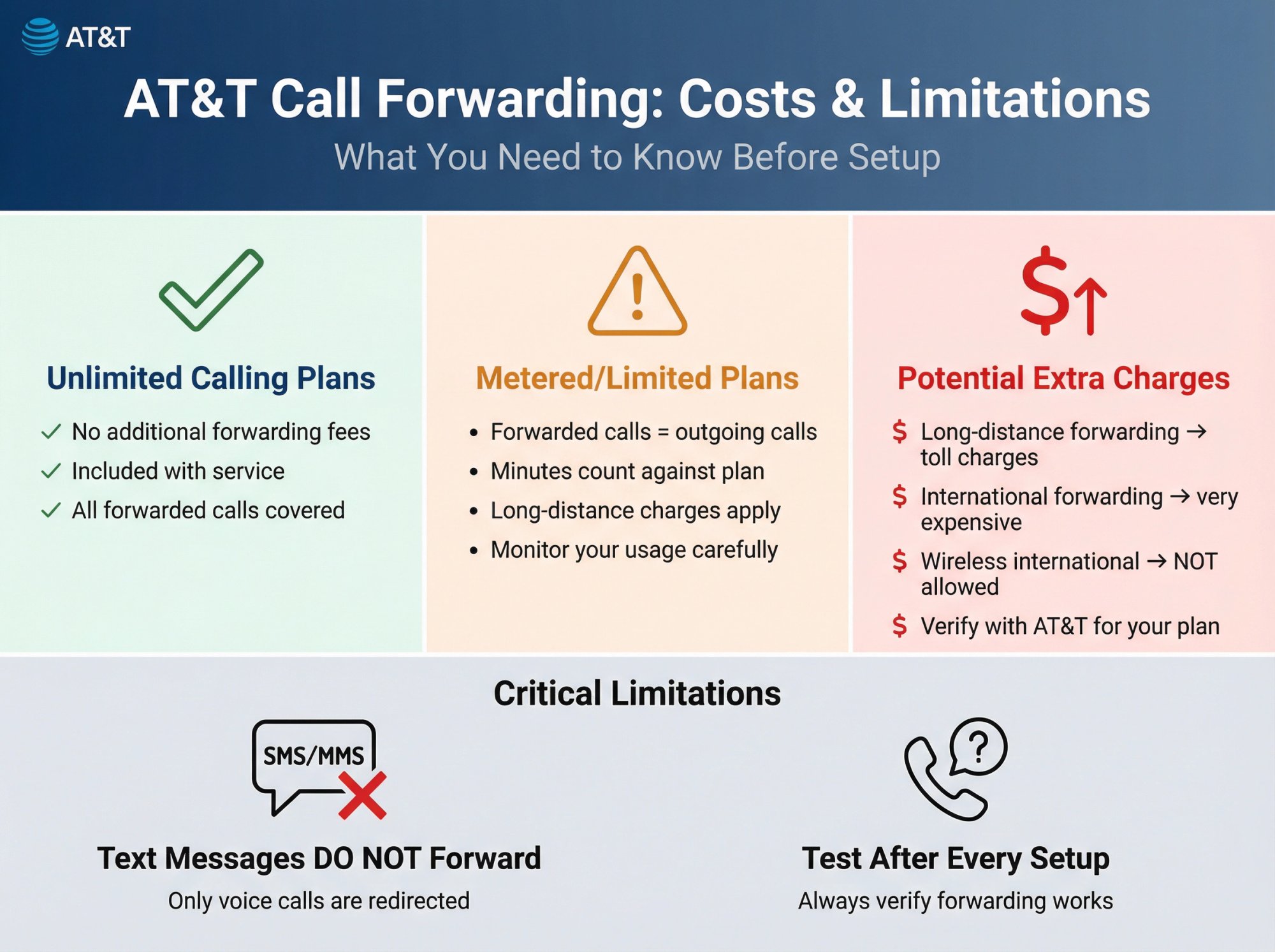
AT&T doesn't charge an additional fee to turn on call forwarding (it's included with your service). But here's what you need to know:
Forwarded calls are treated like outgoing calls from your line:
-
If you have unlimited calling, you're fine
-
If you pay per minute or have limited minutes, forwarded call minutes count against your plan
-
Long-distance forwarding: If you forward to a long-distance number from a landline, toll charges apply to you
-
International forwarding: Forwarding to international numbers can be very expensive (and isn't allowed on wireless)
Call Forwarding Limitations: Calls Only, Not Texts#
Important limitation: Call forwarding only transfers voice calls. Text messages do NOT forward.
Any SMS or MMS text messages sent to your number will:
-
Not forward to the new number
-
Still go to your original phone or get stored there
-
Require a third-party solution if you need text forwarding
If you're away from your device, texts won't follow the calls.
How to Manage Call Forwarding Using the AT&T Online Portal#
If you have AT&T's digital phone service (VoIP), you can manage call forwarding through your online account:
-
Log in to your AT&T Business phone account
-
Look under Phone Features
-
Find options to activate or edit call forwarding numbers
-
Set features like Selective Call Forwarding (forwarding only calls from certain numbers)
When to use portal vs. phone codes:
-
Portal: Better for planned changes, setting up complex rules, or if you're at a computer
-
Phone codes: Faster for quick changes on the fly
Always Test Your Call Forwarding Setup#
Test it. Every time.
After setting up any call forwarding:
-
Make a test call to your own number from another line
-
Verify the call forwards correctly to the destination
-
Check that the destination answers properly
-
Confirm callers hear normal ringing (not "this call has been forwarded" announcements)
When to test:
-
After initial setup
-
After any changes
-
After turning forwarding on or off
-
Before critical periods (holidays, vacations, after-hours coverage)
Testing takes 30 seconds and can save you from missing calls.
How to Turn Off Call Forwarding When Not Needed#
Remember to disable call forwarding when you're ready to take calls on your primary phone again:
-
People sometimes forget forwarding is still active and wonder why their phone isn't ringing
-
Use the quick cancel codes provided above
-
Consider saving the codes somewhere accessible (bookmark, note, or phone contact)
AT&T Remote Access to Call Forwarding: How It Works#
AT&T offers a feature called Remote Access to Call Forwarding that lets you:
-
Activate/deactivate/change forwarding from another touchtone phone
-
Make changes when you're away from your main phone
-
Manage forwarding remotely
Note: This feature may need to be provisioned on your account. Ask AT&T support if you need this capability.
Why Forward Your AT&T Calls to Eden Instead of Voicemail#
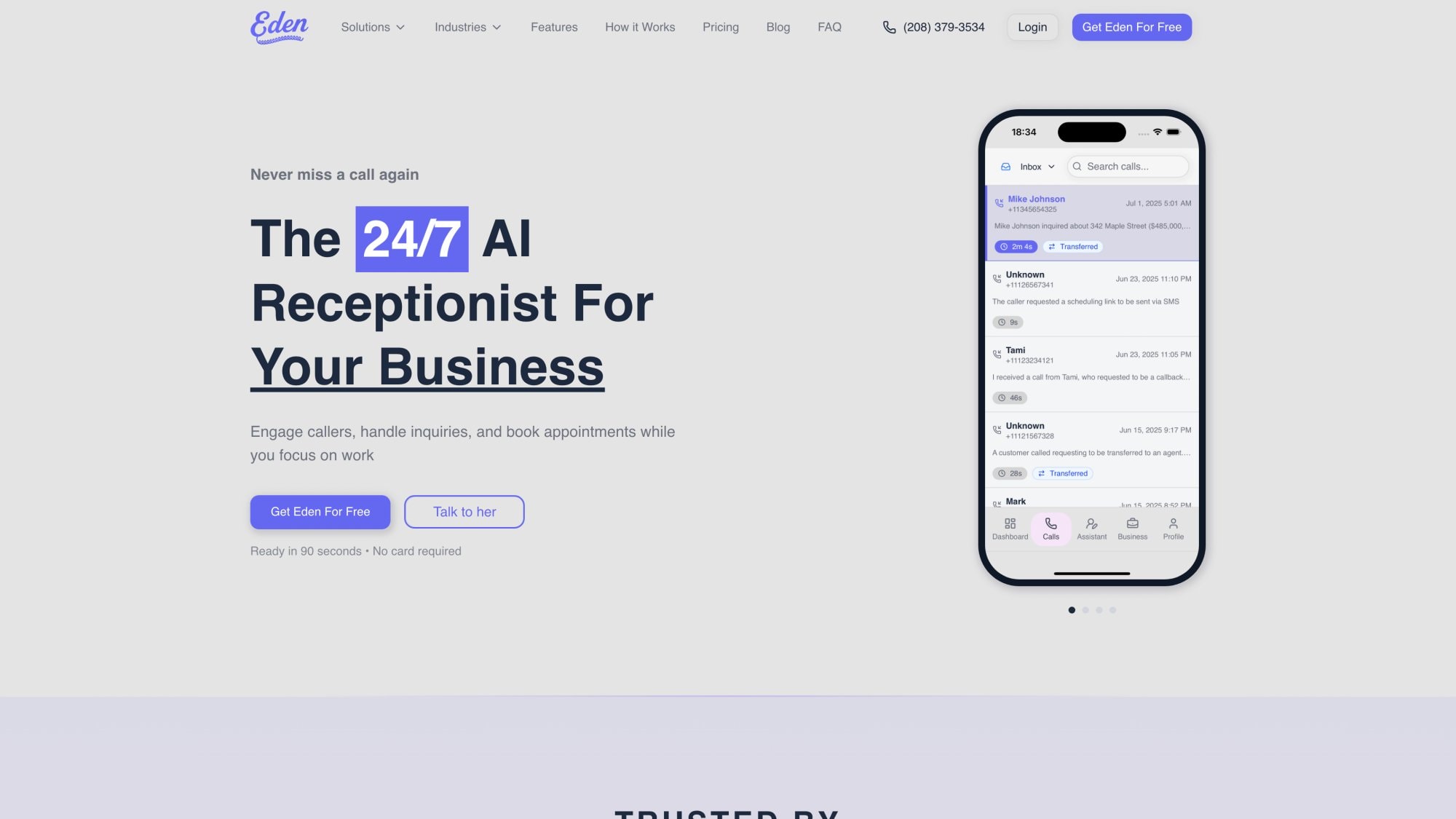
Forwarding your AT&T business calls is powerful. But it gets exponentially better when you forward to the right destination.
Here's the reality: 80% of callers hang up on voicemail. They don't leave messages. They call your competitor instead. That's lost revenue every single time.
But what if every forwarded call reached a professional, helpful assistant who actually talked to the caller?
How Eden Works with AT&T Call Forwarding#
Eden is a 24/7 AI receptionist that integrates seamlessly with AT&T's call forwarding:
When you set Eden as your forwarding destination:
→ Eden greets callers with a natural, professional tone (you customize the greeting)
→ Answers common questions about your business (hours, services, location, pricing)
→ Captures contact information and caller needs
→ Books appointments directly into your Google Calendar or Outlook
→ Warm-transfers important calls to you when you're available
→ Sends instant summaries and full transcriptions to your phone
→ Filters spam calls automatically (IntelliSpam blocks robocalls)
→ Speaks both English and Spanish fluently
It's like having a dedicated receptionist on the other end of your forwarded line at all times.
AT&T Call Forwarding to Eden: Setup Scenarios#
Scenario 1: Missed-Call Forwarding (Recommended Start)
This is the setup we recommend for most businesses:
-
Set up Eden for Busy + No Answer forwarding (using
*90and*92on traditional lines) -
Your phone rings first during business hours
-
If you can't answer, Eden picks up automatically
-
Eden handles the call professionally (captures info, answers questions, books appointment)
-
You get an instant notification with call details
-
When you're available, just turn off forwarding (Eden steps back)
The result: You maintain control and first-ring opportunity, but you never lose a lead to voicemail.
Scenario 2: All-Call Forwarding (24/7 Coverage)
For after-hours, weekends, holidays, or full-time coverage:
-
Forward all calls to Eden using
*72(traditional), scheduled forwarding (Office@Hand), or settings (wireless) -
Every caller reaches a professional helper instead of voicemail
-
Eden handles routine calls and escalates urgent ones (warm transfer to your cell if needed)
-
You maintain oversight through the dashboard
-
Callers get immediate help at 2am or 2pm (no difference to them)
The result: True 24/7 coverage without hiring staff. Every customer is cared for.
Eden vs. Voicemail vs. Traditional Answering Services#
| Feature | Traditional Voicemail | Traditional Answering Services | Eden |
|---|---|---|---|
| Response Time | Callers leave messages (80% hang up) | Business hours only (or very expensive for 24/7) | Immediate, 24/7 |
| Lead Capture | No qualification or details | Variable quality | Automatic capture with full context |
| Appointment Booking | Phone tag required | Manual scheduling | Books while caller is on the phone |
| Cost | Included but ineffective | $200-500+/month | Starting at $39/month |
| Call Quality | N/A | Varies by operator | Consistent, natural AI conversation |
| Integration | None | Limited | Calendar, CRM, notifications |
| Spam Filtering | No | No | IntelliSpam included |
| Bilingual Support | No | Additional cost | Included (English/Spanish) |
We built Eden specifically for SMBs who are losing revenue to missed calls. It works seamlessly with your existing AT&T phone service. You just forward the calls, and Eden handles the rest.
Stop missing calls. Start capturing every opportunity. Get started with Eden and ensure every customer reaches a professional helper instead of voicemail.
Troubleshooting: Why Isn't AT&T Call Forwarding Working?#
"I dialed *72 but it didn't work"#
Cause: On AT&T traditional service, the system places a test call to the forward-to number after you enter the code. Forwarding activates only if that destination answers.
Fix:
-
Make sure the destination can answer the activation call
-
If forwarding to a cell phone, ensure it has signal and isn't on Do Not Disturb
-
If forwarding to an answering service like Eden, verify the number is correct and service is active
-
Try the activation process again
"Forwarding turns on, but calls still go to voicemail"#
Typical causes:
-
You enabled No Answer forwarding but not Busy forwarding (or vice versa)
-
Your voicemail settings are overriding the call path
-
Ring time is too short and voicemail picks up first
Fix checklist (traditional service):
-
Enable both Busy (
*90) and No Answer (*92) forwarding to the same destination -
Check your AT&T online account voicemail settings
-
Verify Busy/No Answer forwarding aren't set to "Forward to Voice Mail" if you want external forwarding
-
Test from a different phone to confirm behavior
"I'm not sure whether to dial 10 digits or 1+10 digits"#
AT&T's forwarding instructions show dialing formats differ based on long distance vs. local calling patterns.
Fix:
-
Try 10 digits first (area code + number)
-
If that fails, try 1 + 10 digits
-
For same area code, you might only need 7 digits (but 10 is safer)
"Calls aren't forwarding to the answering service"#
Common issues:
-
Wrong number entered
-
Answering service number requires "1" prefix
-
Number format includes dashes or parentheses (use digits only)
-
Service isn't active or configured
Fix:
-
Verify the exact number from your answering service provider
-
Try both 10-digit and 1+10-digit formats
-
Test by calling the forwarding destination directly first
-
Ensure the service is active and can receive calls
"We use Office@Hand and want after-hours forwarding automatically"#
Solution: Use Office@Hand's Forward all calls feature with start/end dates (essentially scheduling):
-
Admin Portal → Forward all calls
-
Check "Specify start and end dates"
-
Set business hours end time as start
-
Set business hours start time as end
-
Choose your after-hours destination (like Eden)
This automates the forwarding based on your schedule.
AT&T Call Forwarding FAQ#
Does AT&T charge for call forwarding?#
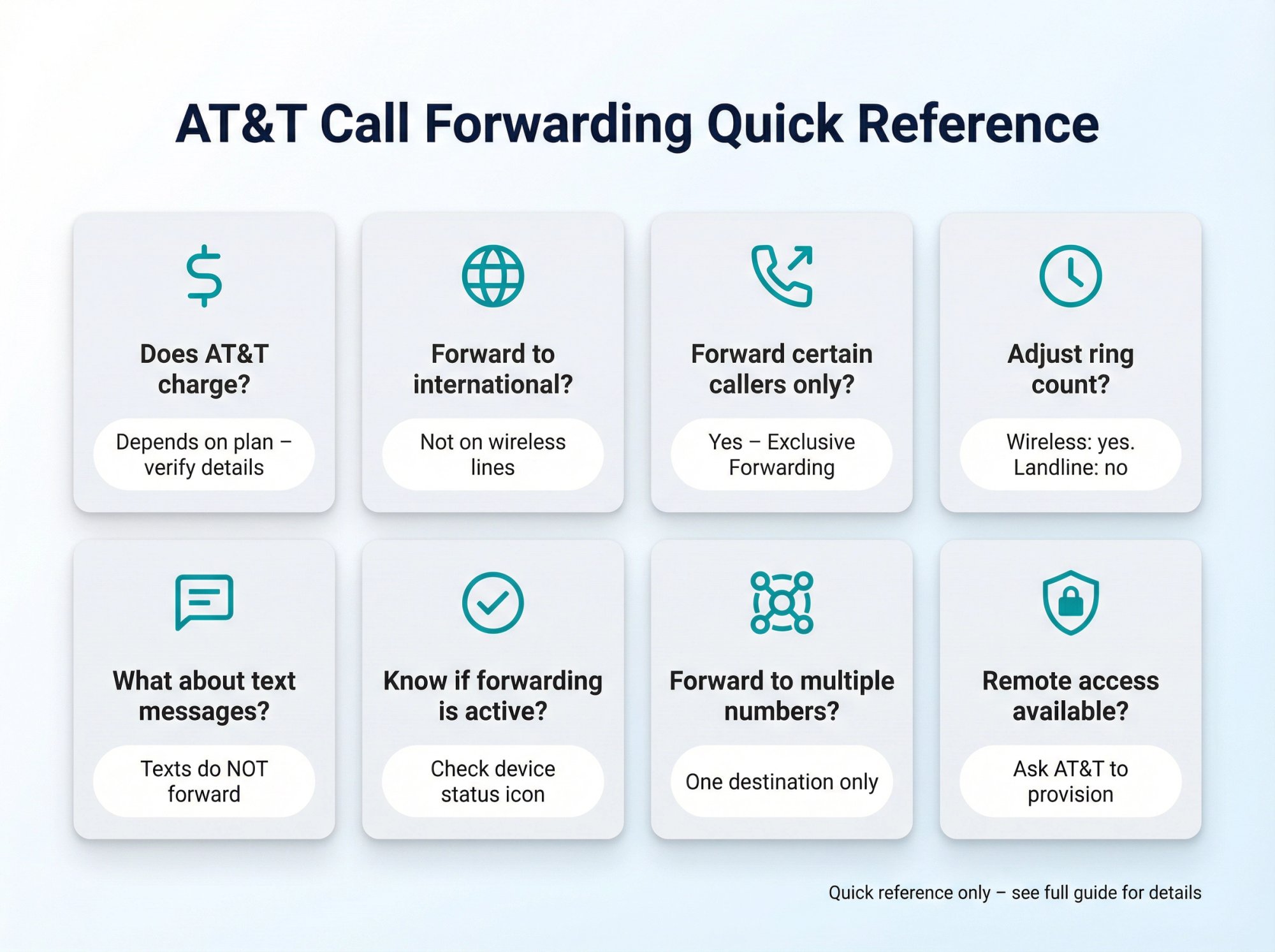
On wireless: AT&T states that forwarded calls are billed, and long-distance/roaming charges may apply depending on your plan and situation.
On traditional service: Charges depend on your local calling area and how your plan treats forwarded calls. If you have unlimited local/long-distance calling, forwarding is typically included. If you pay per minute, forwarded minutes count against your plan.
Best practice: Verify with AT&T using your exact plan details to avoid surprise charges.
Can I forward to an international number?#
AT&T's wireless support explicitly states you cannot forward calls to an international number.
For traditional lines, international forwarding may be technically possible but would incur significant international calling charges (generally not recommended).
Can I forward only certain callers?#
Yes, using Exclusive Call Forwarding:
-
Define a list (up to 20 numbers) in your AT&T Business online account
-
Dial
*63#to activate -
Only calls from those numbers will forward
-
Dial
*83#to deactivate
How do I forward calls from another phone remotely?#
AT&T offers Remote Access to Call Forwarding that lets you manage forwarding from any touchtone phone.
Requirements:
-
Feature must be provisioned on your account
-
Contact AT&T support to enable it
-
Useful for managing forwarding when away from main phone
What happens to text messages when I forward calls?#
Text messages do NOT forward. Call forwarding only affects voice calls. SMS/MMS messages will:
-
Continue to arrive at your original phone number
-
Not be redirected to the forwarding destination
-
Require a third-party solution if you need text forwarding
Can I adjust how many times the phone rings before forwarding?#
On wireless: Yes, you can set the ring time from 5 to 30 seconds using special codes:
-
Command:
*61*+ forwarding number +**30#(for 30 seconds) -
Available in 5-second increments
On traditional lines: No, the ring count is preset by AT&T (about 4 rings or 20 seconds) and cannot be adjusted by users.
Will callers know their call was forwarded?#
No. Callers hear normal ringing and whoever answers at the forwarded number. There's no announcement or indication that the call was forwarded (it feels like a normal call to them).
Can I forward to multiple numbers?#
Not simultaneously. You can only forward to one destination at a time. But you can:
-
Use different forwarding types for different scenarios (busy vs. no-answer)
-
Change the forwarding destination as needed
-
Use Office@Hand call queues to ring multiple destinations
If you want multiple people to be able to answer, consider forwarding to an answering service like Eden that can intelligently route or transfer to the right person based on the caller's needs.
How do I know if call forwarding is active?#
Traditional lines:
-
No built-in indicator
-
Test by calling your number from another phone
Wireless:
-
iPhone/Android show a call forwarding icon in the status bar
-
Settings show forwarding as "On" with the destination number
Office@Hand:
-
Admin Portal shows forwarding status
-
Desktop/mobile apps show indicator when forwarding is active
Your AT&T Call Forwarding Action Plan#
You now have everything you need to set up call forwarding on your AT&T Business service.
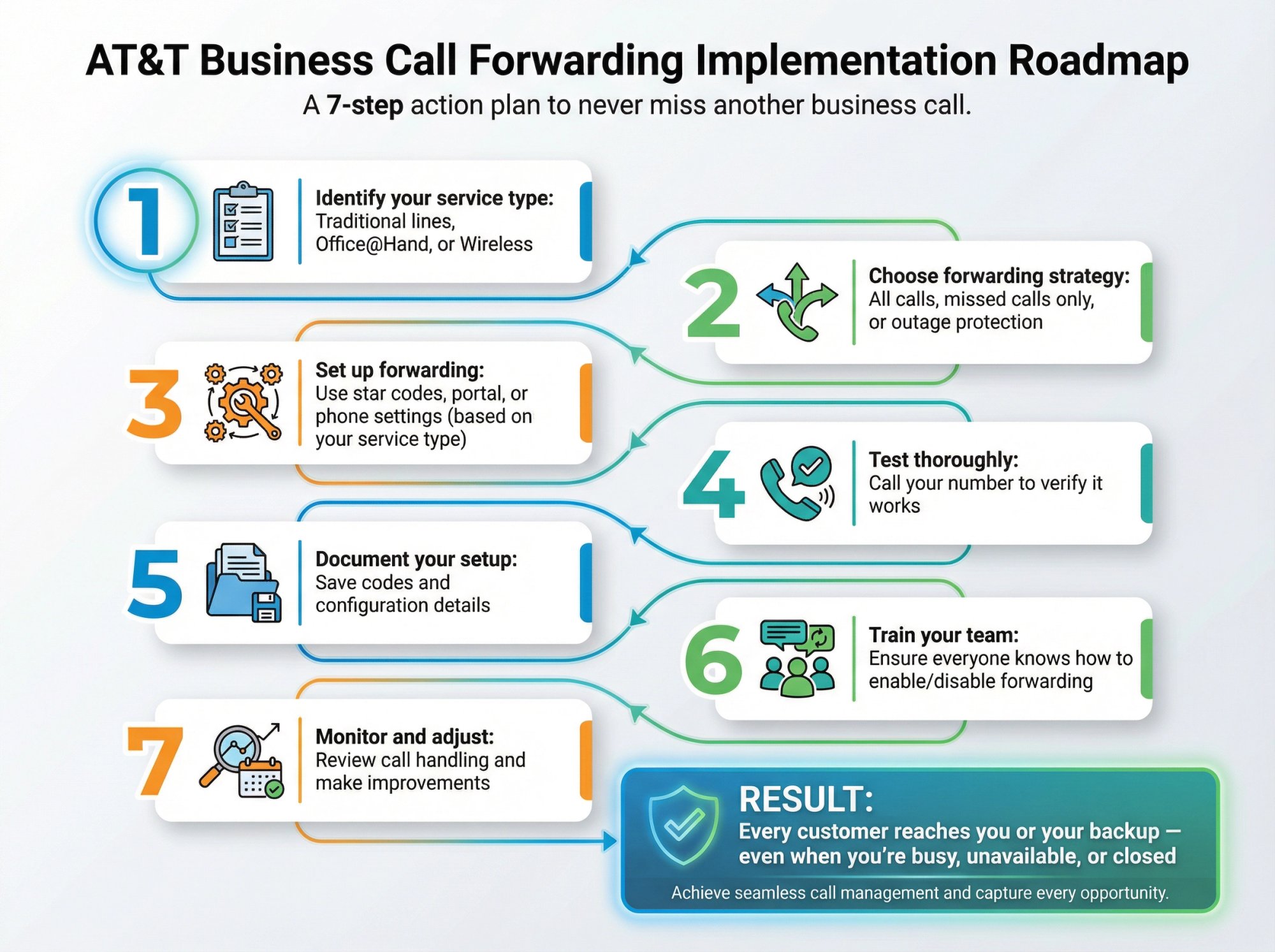
Quick reference checklist:
-
Identify your service type: Traditional lines, Office@Hand, or Wireless
-
Choose forwarding strategy: All calls, missed calls only, or outage protection
-
Set up forwarding: Use star codes, portal, or phone settings (based on your service type)
-
Test thoroughly: Call your number to verify it works
-
Document your setup: Save codes and configuration details
-
Train your team: Ensure everyone knows how to enable/disable forwarding
-
Monitor and adjust: Review call handling and make improvements
Never miss another business call. With AT&T call forwarding properly configured and forwarded to a smart destination like Eden, every customer reaches you or your backup (even when you're busy, unavailable, or closed).
The difference between a missed call and a captured lead is often just proper call forwarding. Set it up today, test it, and stop losing revenue to voicemail.
Ready to ensure every call is answered professionally? Try Eden free and give your AT&T forwarding a destination that actually helps callers instead of frustrating them.
Ready to Transform YourCustomer Experience?
Join hundreds of businesses using Eden AI to handle calls, book appointments, and provide 24/7 customer support.