How to Set Up Ooma Office Call Forwarding (2026 Guide)
Set up Ooma Office call forwarding in minutes. Four methods, all forwarding types, critical settings explained. Never miss another call.
January 20, 2026
Missing calls costs money. Studies show small businesses can lose significant revenue from unanswered customer inquiries. A landscaping business loses a $3,000 contract because the owner's on a job site. A law firm misses a high-value client consultation because everyone's in court. An HVAC company can't answer midnight emergency calls when furnaces fail.
For small businesses using Ooma Office, call forwarding isn't just a feature. It's the difference between capturing revenue and watching it slip away.
This guide shows you exactly how to configure call forwarding in Ooma Office, which type fits your situation, and how to avoid the common mistakes that waste the feature's potential. We'll cover every setup method (star codes, web portal, mobile app, admin controls), explain critical settings most people miss, and show you how to integrate with modern solutions like our AI receptionist for after-hours answering.
How to Turn on Call Forwarding Fast (Star Codes)#
Need calls forwarded right now? Here's the fastest approach using star codes for call forwarding.
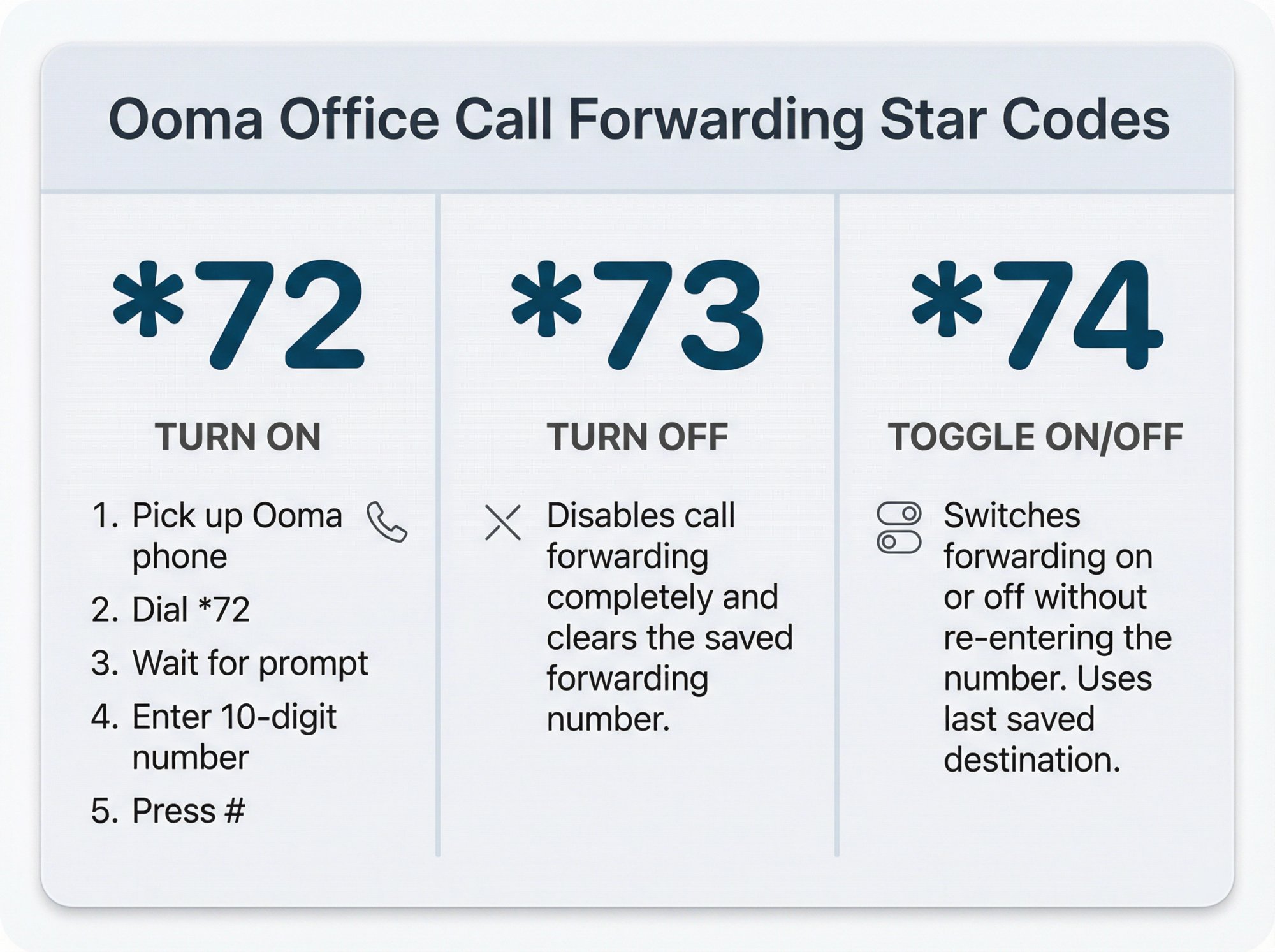
Pick up your Ooma phone and dial these codes:
→ Turn forwarding ON: Dial *72, wait for the prompt, enter the 10-digit forwarding number, press #
→ Turn forwarding OFF (and clear the number): Dial *73
→ Toggle forwarding (keeps the saved number): Dial *74
The star code method works from any Ooma Office phone and takes under 60 seconds. Use it when you're heading out the door or need immediate call coverage.
But there's more to call forwarding than these quick codes.
The setup method you choose, the forwarding type you select, and the settings you configure all determine whether your calls actually reach the right person or get lost in the system.
What Is Ooma Office Call Forwarding?#
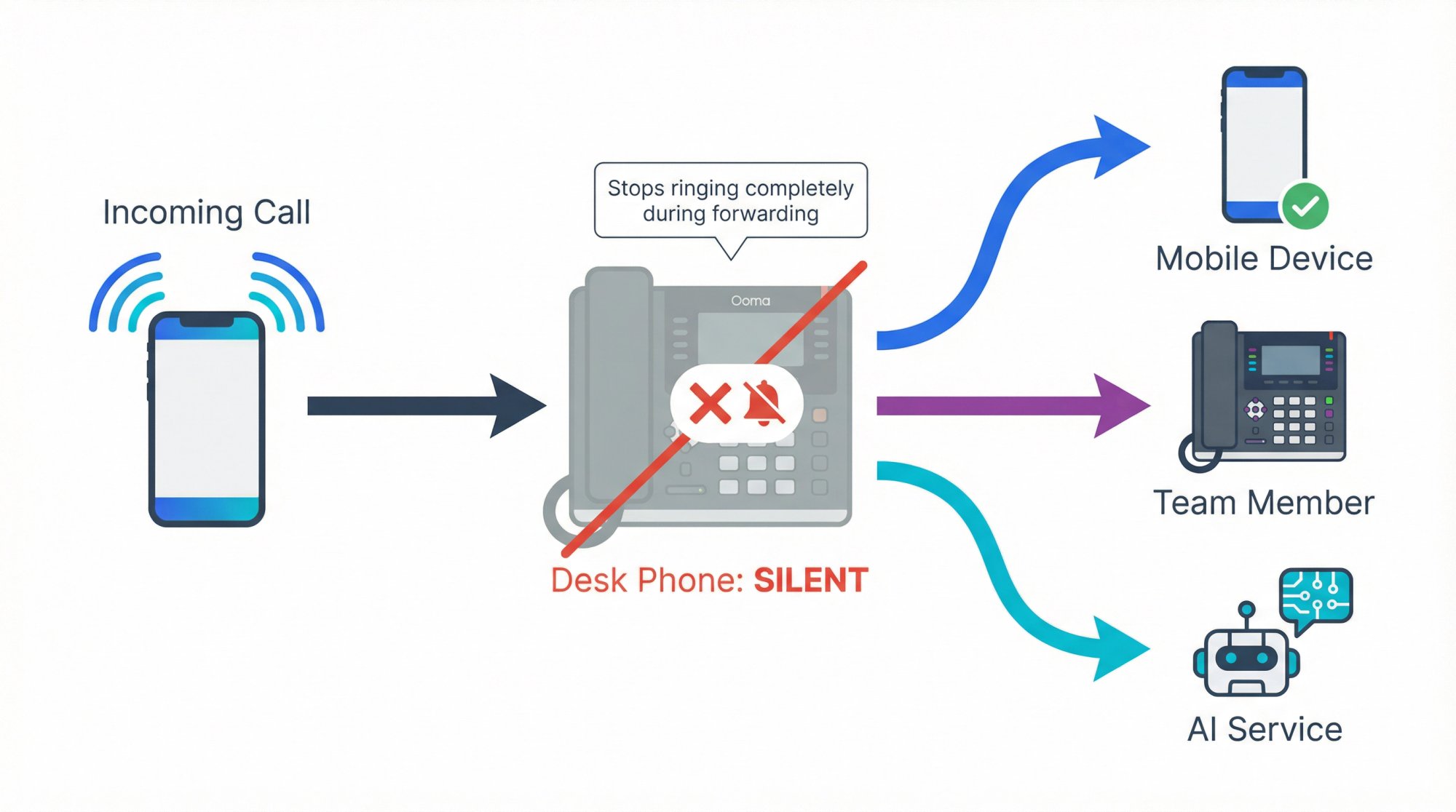
In Ooma Office, call forwarding redirects incoming calls to a different phone number. Instead of ringing only your desk phone, calls can go to your mobile, a colleague's line, an AI answering service, or multiple destinations simultaneously.
Here's what makes Ooma's forwarding unique:
When you enable "forward all calls," your Ooma desk phone stops ringing completely until you disable forwarding. This surprises people who expect their desk phone to keep ringing alongside the forwarded destination.
Call forwarding is available to all Ooma Office subscribers (Essentials, Pro, and Pro Plus plans) at no extra per-use cost.
Forwarding destinations are limited to U.S. and Canadian numbers. You cannot forward to international numbers, period. Ooma blocks international forwarding to prevent unexpected charges.
So when should you use call forwarding? Anytime you need calls answered when you can't be at your desk. Field technicians answering while on jobs. After-hours coverage when the office is closed. Backup routing when internet goes down. Emergency coverage when you're sick.
The system is flexible, but that flexibility means you need to understand your options.
Which Type of Call Forwarding Do You Need?#
Ooma Office offers several forwarding types. Choosing the wrong one creates problems (calls going nowhere, desk phone silent when you wanted it ringing, backup coverage that never triggers).
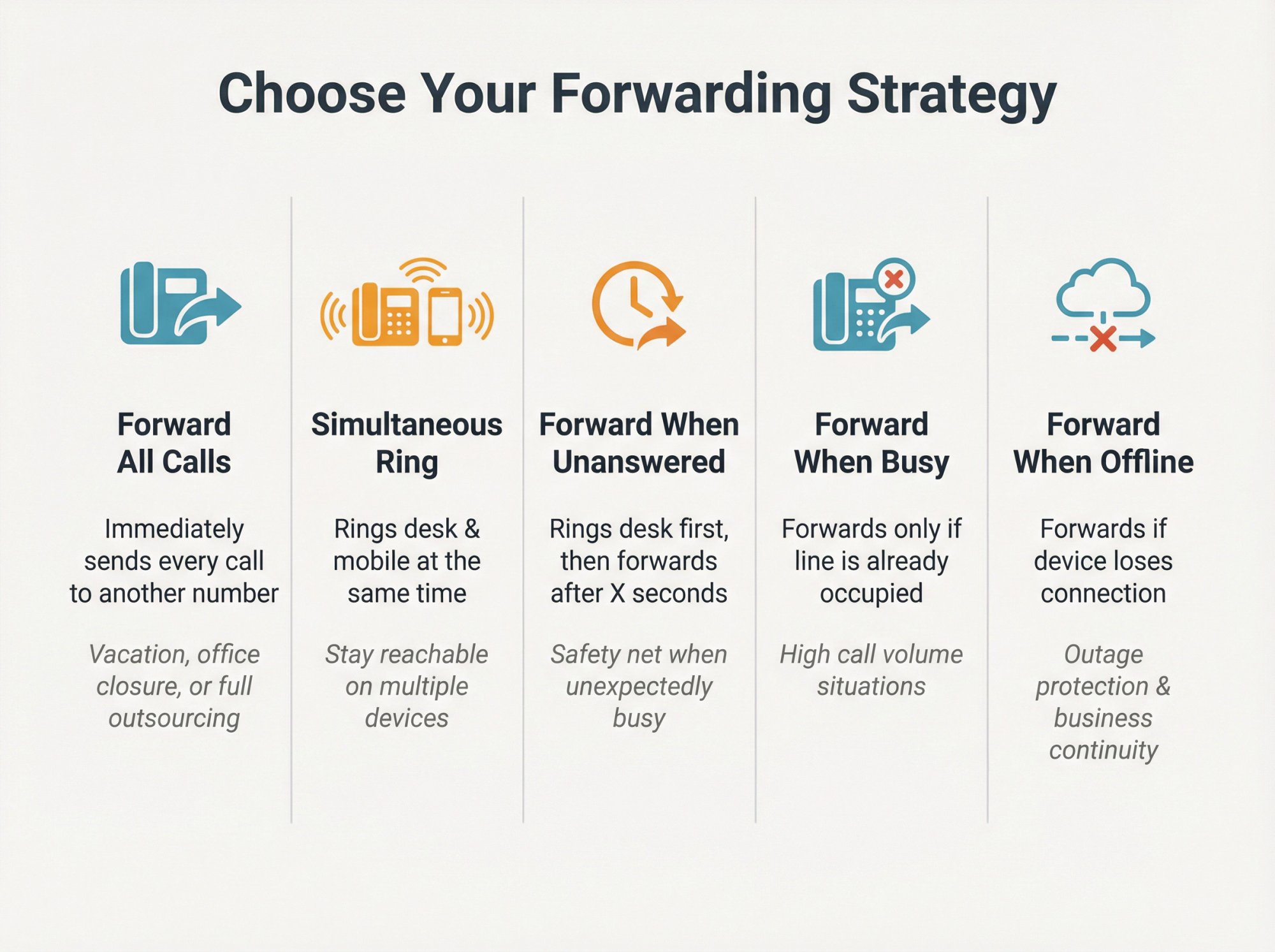
Here's how to decide:
| Forwarding Type | What It Does | When to Use |
|---|---|---|
| Forward All Calls | Immediately sends every call to another number; desk phone doesn't ring | Vacation coverage, temporary office closure, sending all calls to answering service |
| Simultaneous Ring | Rings multiple devices at once (desk phone AND cell phone); first to answer wins | Stay reachable on multiple devices, never miss calls while mobile |
| Forward When Unanswered | Rings desk phone first; if no answer within X seconds, forwards to another number | Safety net coverage, backup for when you're unexpectedly busy |
| Forward When Busy | Forwards only if your line is already occupied on another call | High call volume situations, ensuring second calls don't go to voicemail |
| Forward When Offline | Forwards if Ooma device loses connection (internet down, power out, device failure) | Outage protection, storm coverage, business continuity planning |
Most businesses actually use multiple types together. For example: simultaneous ring during business hours, forward all calls to Eden after hours, and forward when offline as emergency backup.
When to Use Each Forwarding Type#
Instead of overwhelming you with choices, here's exactly when to use each type:
| If You Need... | Choose This Type | Why It Works |
|---|---|---|
| Every call sent elsewhere immediately | Forward All Calls | Your desk phone stays silent; all traffic routes to one destination |
| Desk phone AND mobile ringing together | Simultaneous Ring | You get calls on multiple devices without missing desk coverage |
| First chance to answer, then backup | Forward When Unanswered | You answer when available; forwarding is your safety net |
| Coverage during internet/power failures | Forward When Offline | Only triggers during infrastructure problems |
The type you choose determines what settings you'll need to configure next.
How to Set Up Ooma Office Call Forwarding (4 Methods)#
Ooma offers four different setup methods. Each has specific situations where it's the best choice.
Method 1: Star Codes (Fastest for On-the-Go)#
Best when: You need to toggle forwarding quickly from any phone.
To activate forwarding:
① Pick up your Ooma phone handset
② Dial *72
③ Listen for the voice prompt
④ Enter the 10-digit forwarding number (include area code)
⑤ Press # to confirm
⑥ System reads back the number and confirms activation
To deactivate forwarding:
Simply dial *73 from your Ooma phone. The system confirms forwarding is disabled and clears the stored number.
To toggle forwarding on/off:
Dial *74 to switch between enabled and disabled without re-entering the number. This works with the last forwarding number you saved.
Critical distinction: Use *72 when you want to set or change the forwarding destination. Use *74 when you just want to toggle your existing setup on or off.
Star codes work from Ooma phones and the mobile app's keypad. They're perfect for contractors heading to job sites or office managers leaving for the day.
Method 2: Ooma Office Manager (Web Portal)#
Best when: You need full control over all forwarding options and conditional settings.
Step-by-step setup:
-
Open your browser and go to office.ooma.com
-
Log in with your Ooma Office credentials (admin or user account)
-
In the left sidebar, click Users or Extensions
-
Select the user/extension you want to configure
-
Choose your forwarding mode from the dropdown:
-
Disabled (no forwarding)
-
Enabled (forward all calls)
-
Enabled when devices offline (outage protection only)
-
-
Enter the forwarding phone number (10 digits, U.S. or Canada only)
-
Configure optional conditional forwarding:
-
Forward When Unanswered: Enable and set ring delay (typically 15-20 seconds)
-
Forward When Busy: Enable to redirect calls when your line is occupied
-
-
For Simultaneous Ring, check BOTH the desk phone device AND the external forwarding number in the ring destinations. Set the external number to "Always" to make both ring together.
-
Click Save to activate
The web portal gives you the most flexibility. You can see all options at once, set precise timing, and configure complex routing rules.
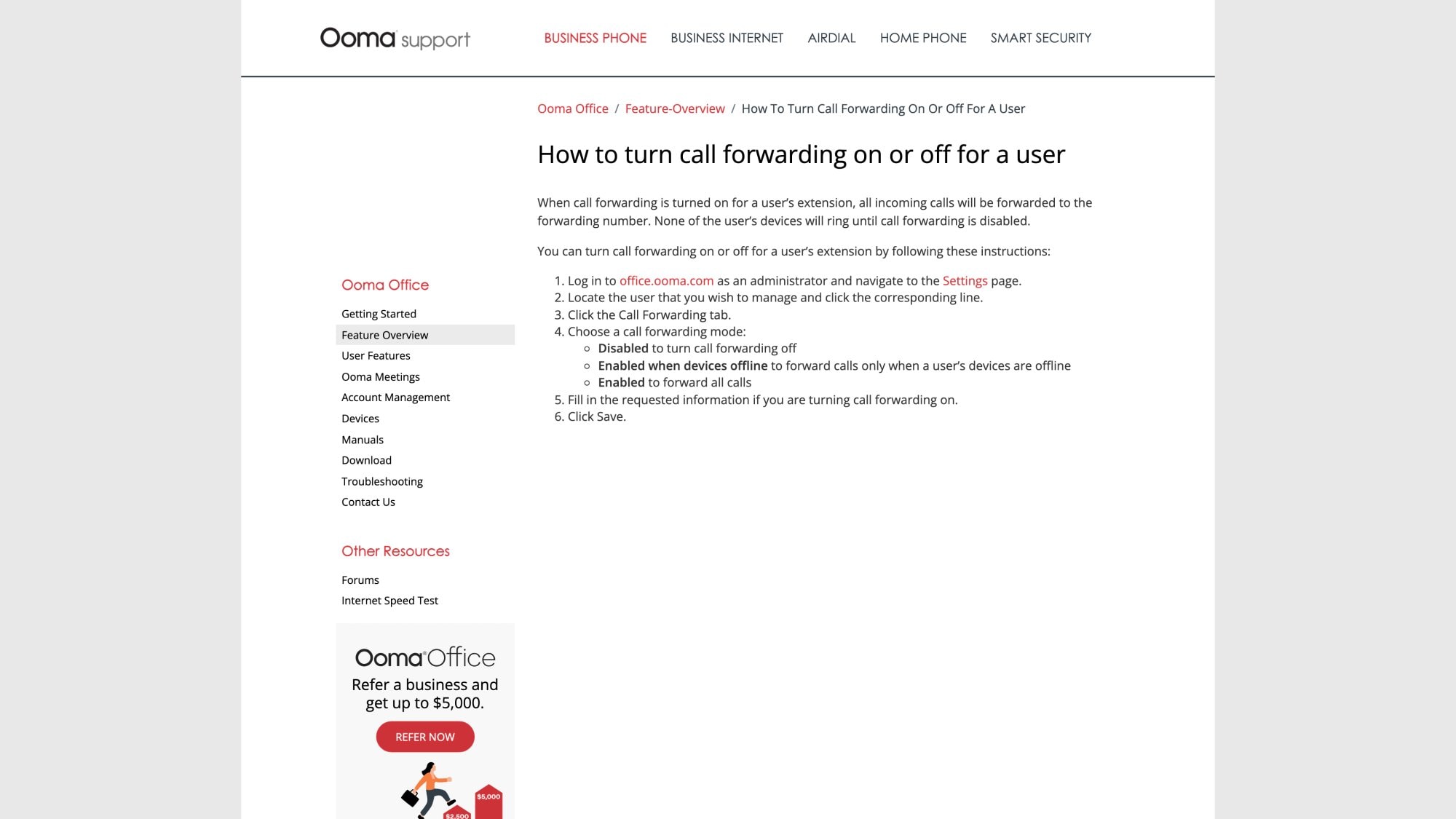
The screenshot above shows Ooma's official documentation for web portal call forwarding setup. You can reference this support page anytime you need step-by-step guidance.
Method 3: End User Portal#
Best when: Individual users need to manage their own forwarding without admin access.
Users can configure call handling through the End User Portal:
-
Log in to the End User Portal (credentials provided by your admin)
-
Go to Settings → Call Handling
-
Under "When a call comes in," choose Forward it immediately
-
Select My Forwarding number as the destination
-
Enter or verify the forwarding number
-
Configure Caller ID display (covered in next section)
-
Optionally enable Require key press on answer
-
Save changes
This method empowers team members to control their own forwarding without needing admin permissions.
Note: You can also access these settings through the Ooma Desktop App via Settings → Devices.
Method 4: Ooma Mobile App#
Best when: You're on the go and need to toggle forwarding from your phone.
In the Ooma Office mobile app:
-
Open the app
-
Tap More
-
Tap Call Forward
-
Toggle forwarding on/off or update the forwarding number
The mobile app provides simplified access to your forwarding preferences without needing a computer. It's essentially a mobile-friendly version of the End User Portal.
Critical Settings That Make or Break Call Forwarding#
Most call forwarding problems aren't setup issues. They're configuration mistakes in two specific settings that completely change how forwarding behaves.
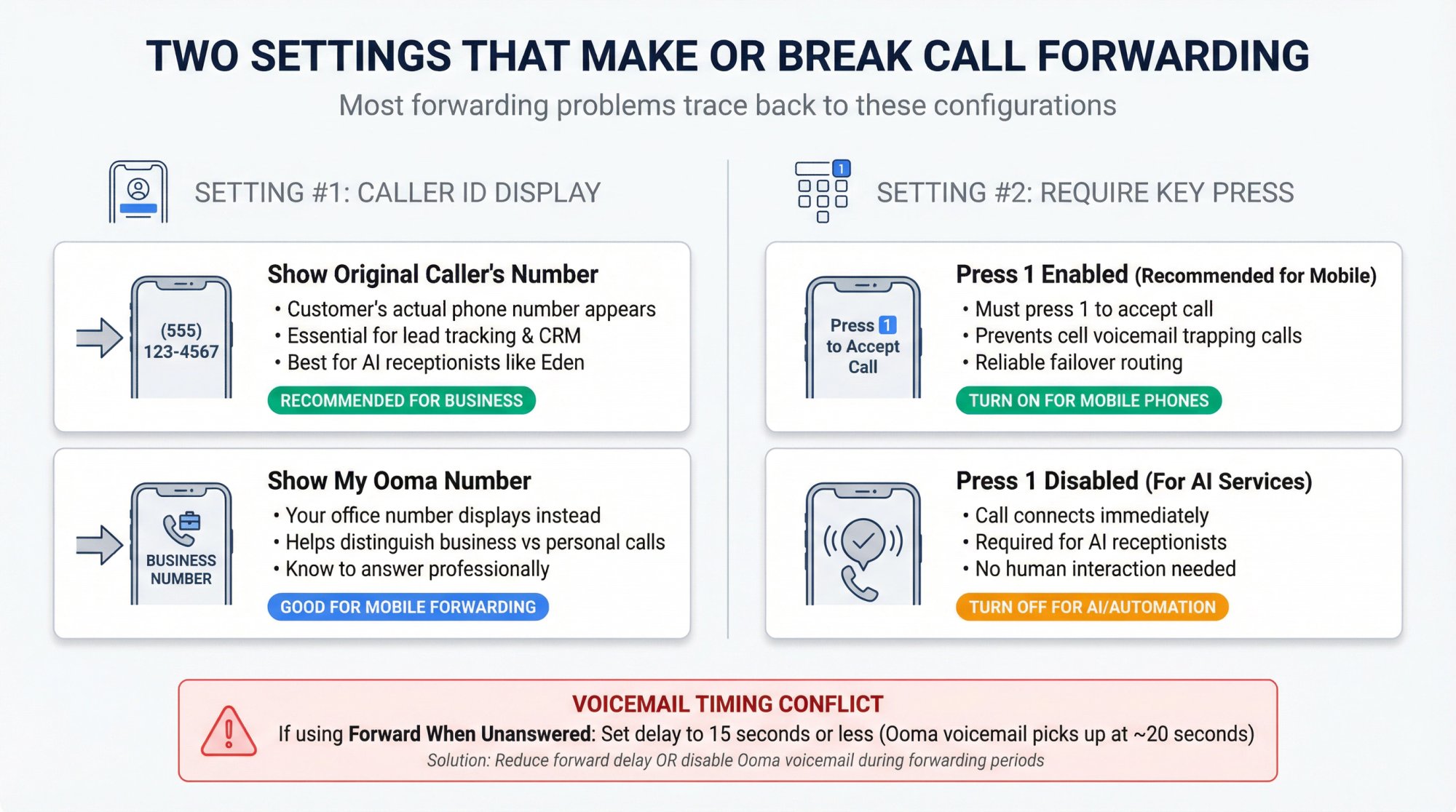
What Number Shows When Calls Are Forwarded?#
When Ooma forwards a call, you can choose what appears on the receiving phone's caller ID:
| Display Option | What You See | Best For |
|---|---|---|
| Show original caller's number | The actual caller's phone number | When you need to know who's really calling before answering; essential if forwarding to answering service or AI receptionist (like Eden) for lead tracking and CRM integration |
| Show my Ooma number | Your Ooma business line number | When you want to distinguish business calls from personal calls on your mobile phone; seeing your office number helps you answer with a professional greeting |
This setting lives in the call forwarding configuration screen (web portal, End User Portal, or Desktop App). Choose based on how you need to identify incoming calls.
Should You Require "Press 1" to Accept Calls?#
This is the single most important setting for mobile phone forwarding.
When enabled, you must press 1 to accept the forwarded call. If you don't press 1 (or if your phone goes to voicemail), Ooma knows the call wasn't answered and can route it to the next destination or Ooma voicemail.
Why this matters: Without "require key press," forwarded calls that go to your cell phone's voicemail are considered "answered" by Ooma. The caller hears your personal voicemail greeting, not your business greeting. Even worse, if you miss the call, it's trapped in your personal voicemail instead of routing to your business voicemail or answering service.
Turn this setting ON if:
-
You're forwarding to a mobile phone
-
You want to prevent calls from getting trapped in cell voicemail
-
You need reliable failover (if you don't answer, call routes to next destination)
Turn this setting OFF if:
-
You're forwarding to an AI receptionist or automated service
-
The destination can't respond to voice prompts
-
You're certain the destination will always answer
For forwarding to Eden or similar AI answering services, keep this setting OFF. AI systems answer immediately and don't need (and can't respond to) a "press 1" prompt.
How to Avoid Voicemail Conflicts#
If you enable Forward When Unanswered, you're racing against Ooma's voicemail timer.
Here's the problem: Ooma voicemail typically picks up after about 20 seconds. If you set your "forward when unanswered" delay to 20 seconds too, voicemail might grab the call before forwarding triggers.
Solution: Set your forward delay to 15 seconds (or less) to ensure forwarding happens before voicemail activates. Or, if you want calls to go to an external service instead of Ooma voicemail, extend your Ooma extension's ring time or temporarily disable voicemail during forwarding periods.
Many businesses that use answering services or AI receptionists turn off Ooma voicemail entirely and rely on the external service's voicemail instead.
How to Forward Calls When Your Internet Goes Down#
Internet outages happen. Power failures happen. When your Ooma device can't connect, normal call forwarding stops working because the device isn't registered.
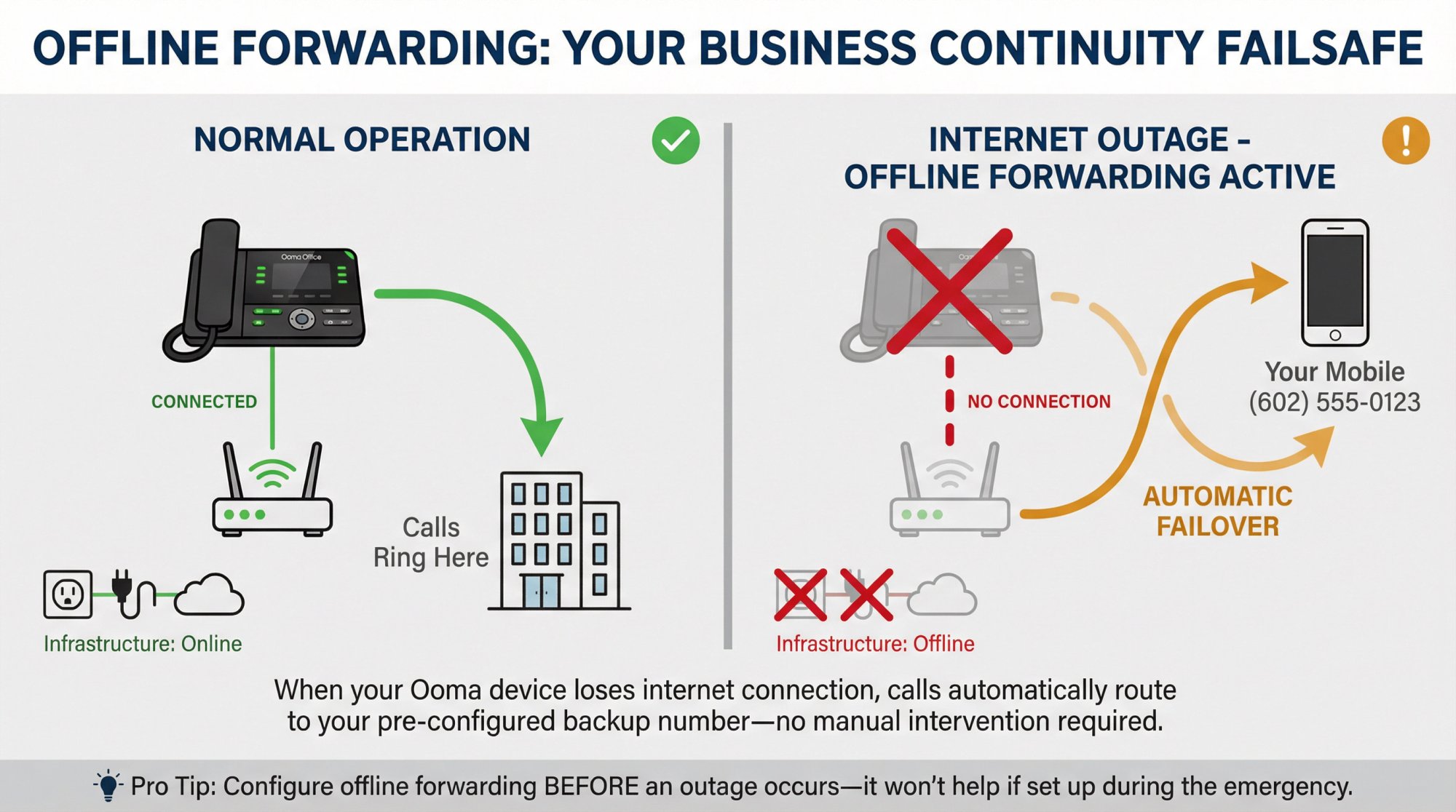
Offline forwarding is your failsafe. It activates only when Ooma detects your devices are offline (power out, router down, device unplugged).
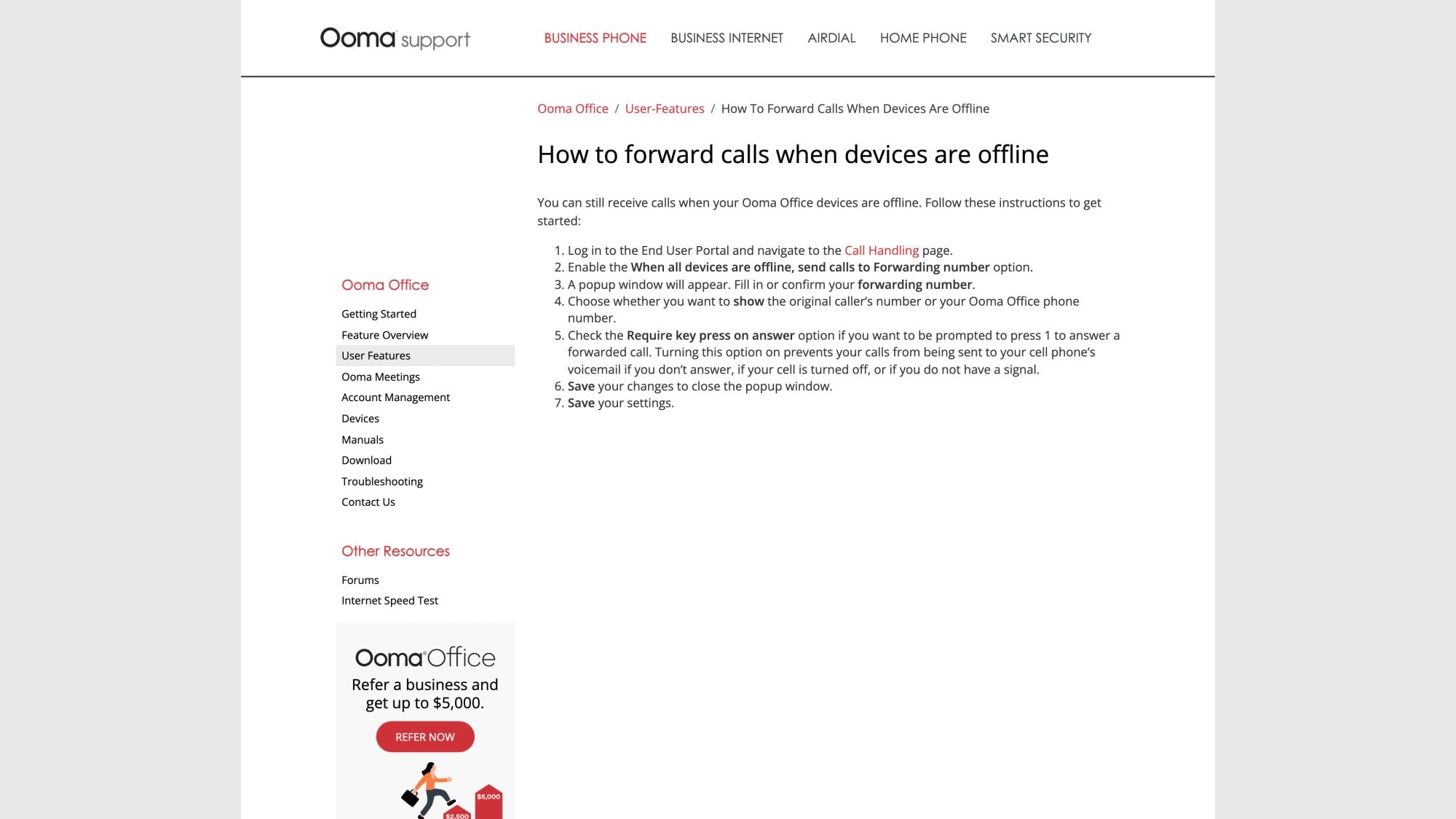
The screenshot above shows Ooma's official guidance on offline forwarding setup. This support documentation walks through the exact steps to configure your failsafe.
How to Set Up Offline Forwarding#
Method 1: End User Portal
-
Log in to the End User Portal
-
Go to Call Handling
-
Enable "When all devices are offline, send calls to Forwarding number"
-
Enter your offline forwarding number
-
Choose Caller ID behavior
-
Optionally enable "Require key press"
-
Save
Method 2: Admin Office Manager
Admins can set a user's call forwarding mode to "Enabled when devices offline" in the Office Manager settings.
This mode keeps normal routing during online operation but automatically forwards when devices lose connection.
When to use offline forwarding:
-
Storm-prone areas where power outages are common
-
Businesses that can't afford downtime during internet failures
-
Emergency backup for critical call capture
Offline forwarding won't trigger if your devices are working normally. It's insurance against infrastructure failure.
How to Set Up Advanced Call Routing (Pro Plus Only)#
Ooma's standard call forwarding works at the individual user/extension level. But what if you want to forward a department line, ring group, or main number to an external destination?
That requires Ooma Office Pro Plus features.
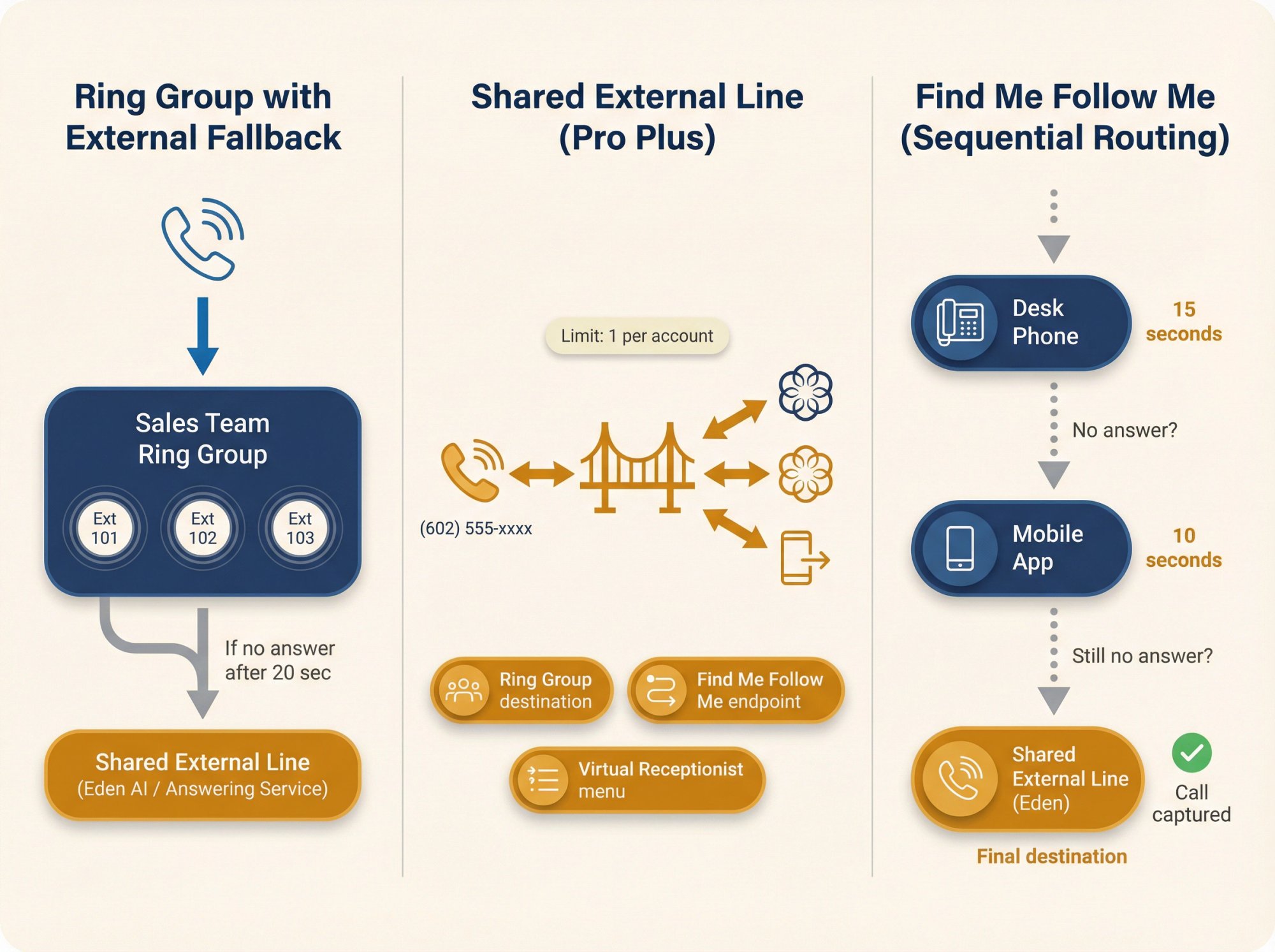
Shared External Line#
What it is: A special extension type that represents an external phone number. Once created, it can be used as a destination in Ring Groups, Call Queues, and Virtual Receptionist menus.
Why you need it: Without Shared External Line, group extensions (like Ring Groups) can only route to internal Ooma extensions, not external phone numbers. This feature bridges that gap.
How to set it up:
-
Log in to office.ooma.com as admin
-
Go to Settings
-
In the ADD menu, choose Shared External Line
-
Name it (e.g., "After Hours Service" or "Eden AI")
-
Enter the external phone number
-
Optionally enable Required key press on answer
-
Save
Once created, the Shared External Line appears as an option in other extensions' call handling settings. You can add it to a Ring Group member list or set it as a Virtual Receptionist menu destination.
Limitation: Ooma allows one Shared External Line per account. Plan accordingly.
Ring Groups#
What they do: Ring multiple people simultaneously or sequentially when a specific number or extension is called.
How they work with forwarding: Ring Groups can include internal extensions and (if you have Pro Plus) a Shared External Line. If nobody in the group answers, the group can redirect to another extension or the Shared External Line.
Common pattern:
-
Create Ring Group for your sales team
-
Add team members' extensions to ring simultaneously
-
Set "if no answer" to redirect to Shared External Line (pointing to your answering service or Eden)
-
Calls ring your team first; if everyone's busy, forwarding takes over
This creates professional "ring first, then forward externally" routing.
Find Me Follow Me#
What it is: A Pro Plus feature that defines ordered ringing rules across multiple devices with custom timeouts.
Example setup:
-
Ring desk phone for 15 seconds
-
If no answer, ring mobile app for 10 seconds
-
If still no answer, route to Shared External Line (forwarding externally)
Find Me Follow Me gives you sequential control: "try here, then here, then here." Combined with Shared External Line, you can create sophisticated fallback chains that eventually reach an external destination.
To set it up:
-
Go to Call Handling in End User Portal
-
Set "When I receive a call" to "Ring devices in a specific order"
-
Add rules with durations for each device
-
In "Then send to," choose Another extension and select your Shared External Line
-
Optionally enable "If my phone is offline, forward it to external number" for outage protection
This is the most professional setup for small businesses: you get first chance to answer, backup devices ring if you're away from your desk, and external forwarding catches anything that slips through.
How to Forward Ooma Calls to Eden AI Receptionist#
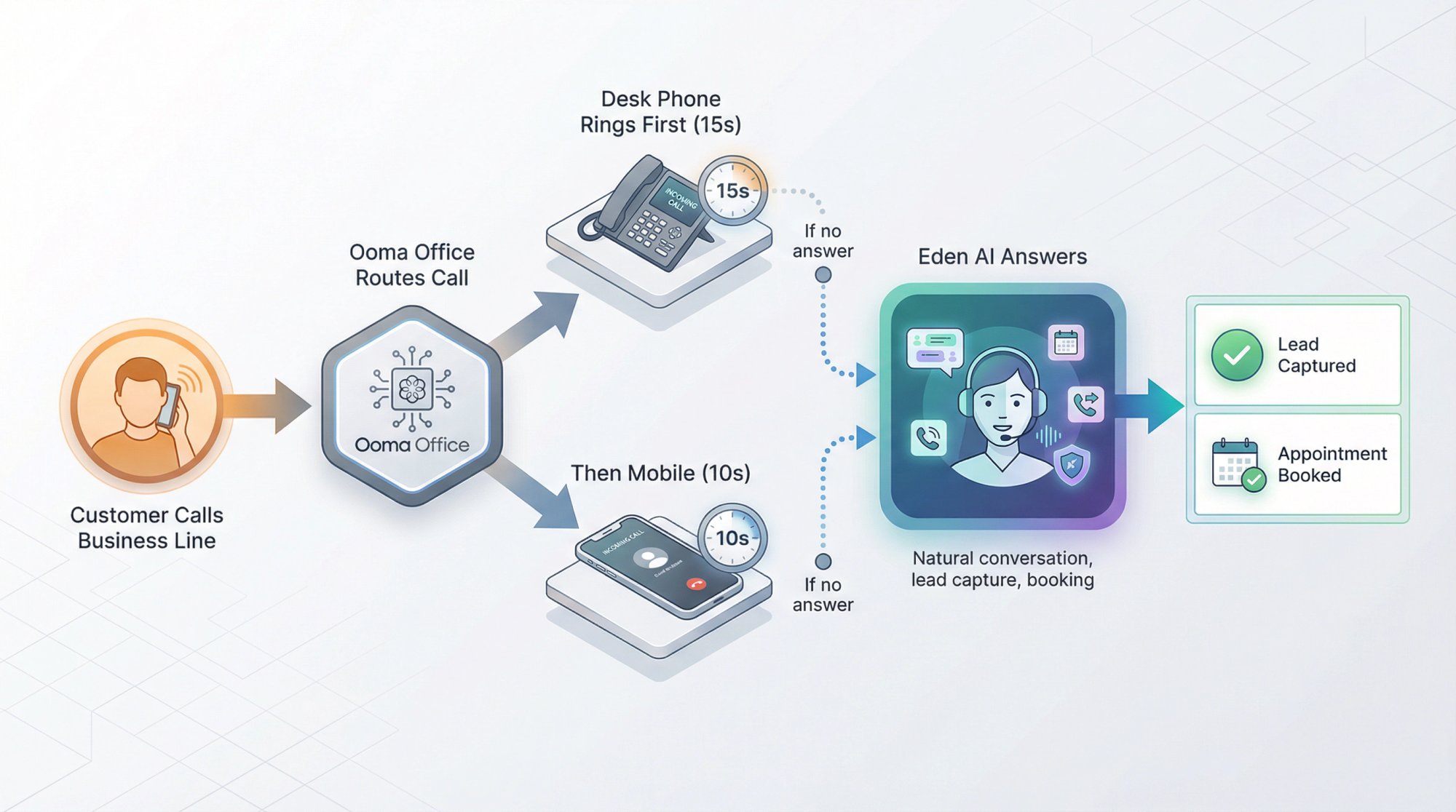
Many Ooma Office users forward calls to Eden, our AI receptionist, for 24/7 coverage. Eden answers in natural language, captures lead details, sends scheduling links, transfers calls, and blocks spam automatically.
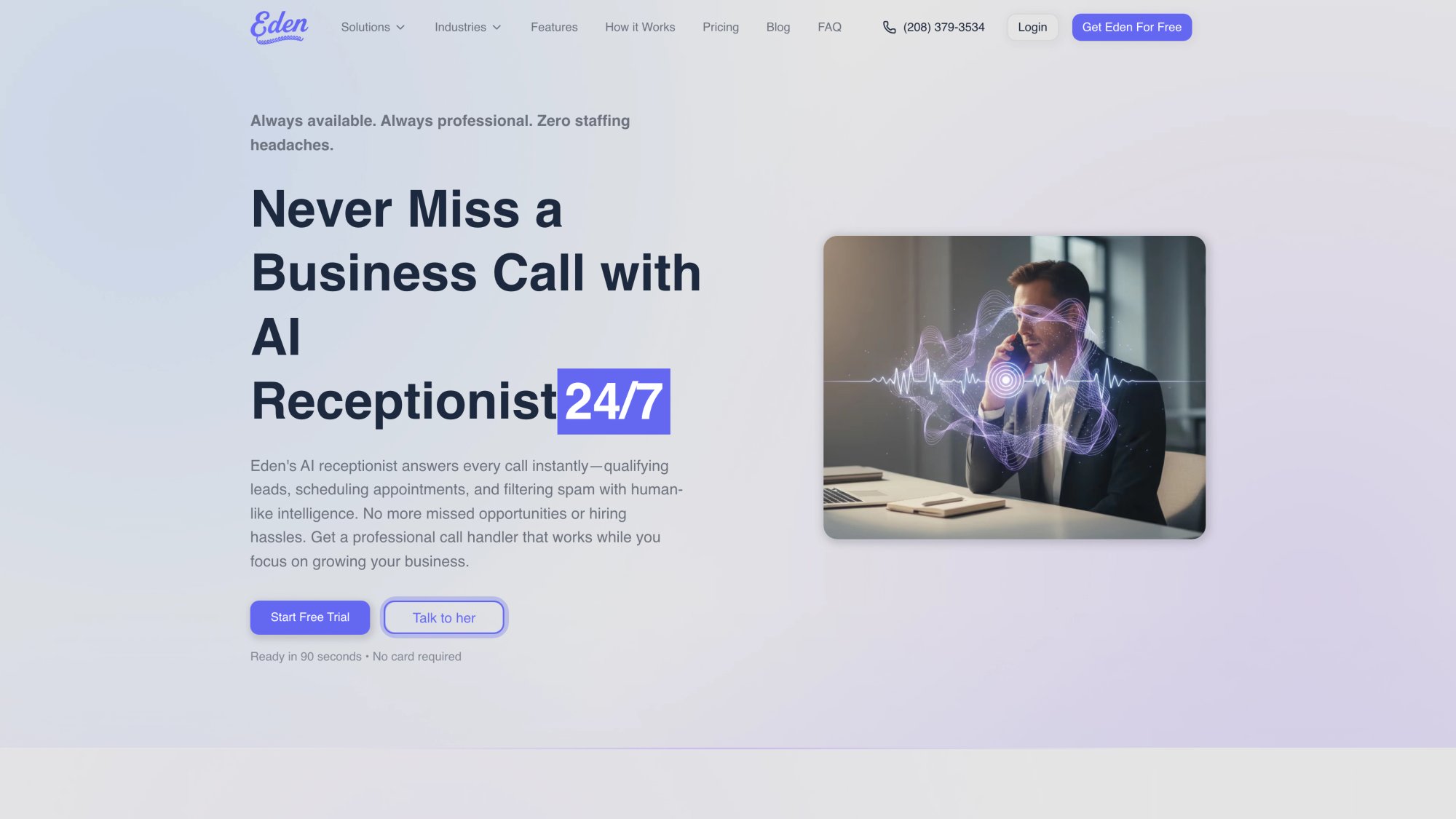
The screenshot above shows Eden's AI receptionist solution. You can explore the full feature set at ringeden.com/solutions/ai-receptionist-solution.
Here's how to set it up properly:
Basic 24/7 Coverage Setup#
For basic 24/7 coverage:
Use Forward All Calls to send every call to your Eden number.
-
Activate with *72 → Eden number → #
-
Or configure in End User Portal: "Forward it immediately" → your Eden number
When to use this: You want Eden to answer everything (after hours, all day, during busy seasons).
Professional "Ring First, Then Eden" Setup#
For "ring me first, then Eden" coverage:
Use Pro Plus features:
-
Create a Shared External Line pointing to your Eden number
-
Enable Find Me Follow Me
-
Set ring order: desk phone first (15 sec) → mobile (10 sec) → Shared External Line (Eden)
When to use this: You want to answer when you can, but ensure Eden covers missed calls instead of voicemail.
Critical Settings for Eden Integration#
Caller ID: Choose "Show original caller" so Eden captures the actual caller's number for lead tracking and CRM integration.
Require key press: Keep this OFF for Eden. AI answering services answer immediately and don't respond to "press 1" prompts. Enabling it will break the connection.
Why Forward Calls to Eden?#
Small businesses miss an estimated 60% of calls when staff are busy, after hours, or unavailable. Every missed call is a potential customer calling your competitor next.
Eden solves this by answering 24/7 with natural conversation (not robotic IVR), capturing name, number, service need, and urgency instantly, offering available appointment slots and booking them, transferring urgent calls to you or on-call staff, blocking spam automatically so your paid minutes go to real customers, speaking fluent English and Spanish, and sending call summaries by SMS and email immediately.
You stay in control. Calls ring you first if that's what you want, and Eden handles everything you can't get to. Or forward everything to Eden during specific hours (evenings, weekends, lunch breaks) and take over manually during your core working hours.
The setup takes five minutes, and you can toggle it on or off anytime with star codes.
How to Test Your Call Forwarding Setup#
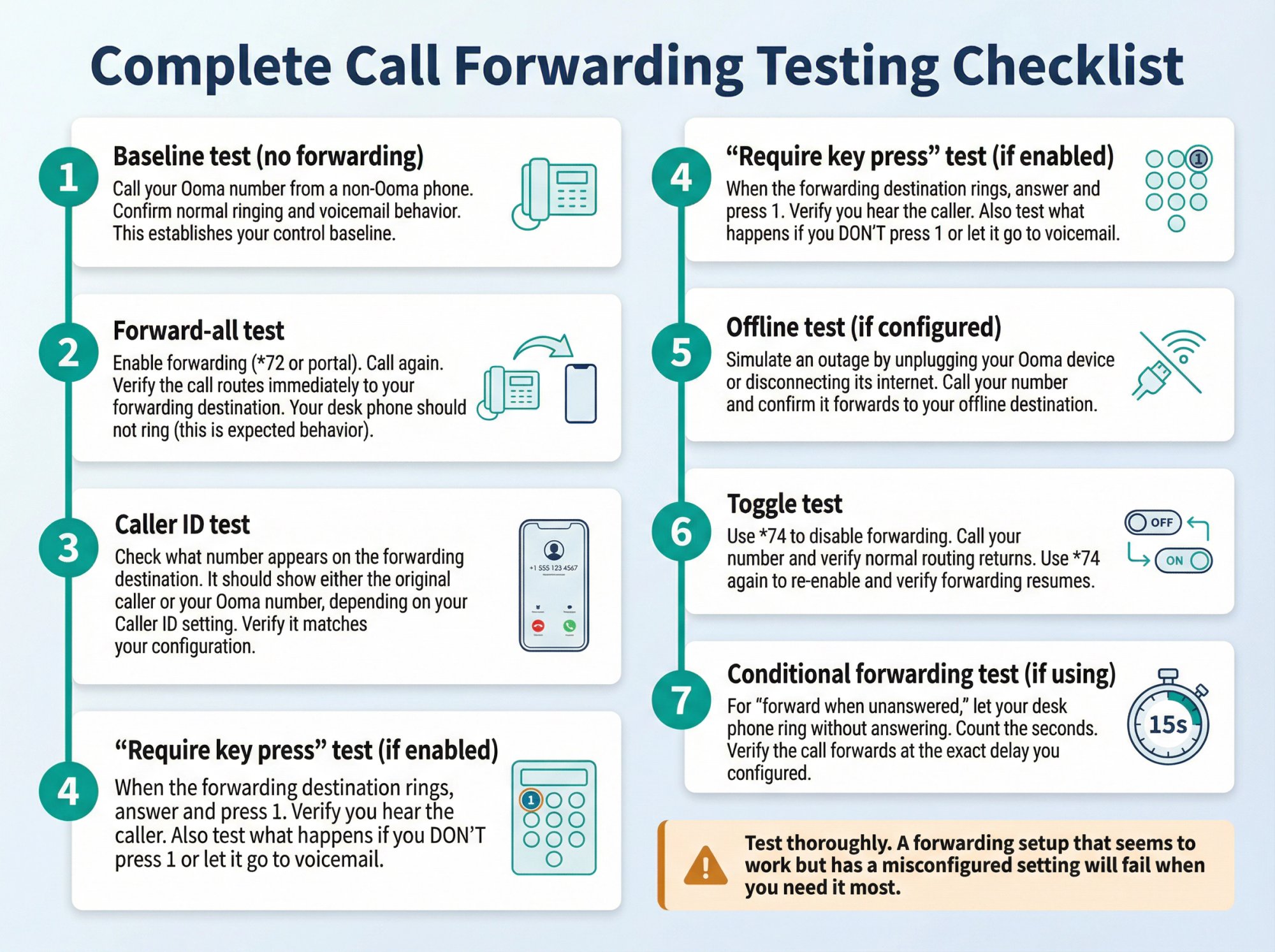
Never go live with call forwarding until you've tested every scenario.
Complete Testing Checklist#
① Baseline test (no forwarding):
Call your Ooma number from a non-Ooma phone. Confirm normal ringing and voicemail behavior. This establishes your control baseline.
② Forward-all test:
Enable forwarding (*72 or portal). Call again. Verify the call routes immediately to your forwarding destination. Your desk phone should not ring (this is expected behavior).
③ Caller ID test:
Check what number appears on the forwarding destination. It should show either the original caller or your Ooma number, depending on your Caller ID setting. Verify it matches your configuration.
④ "Require key press" test (if enabled):
When the forwarding destination rings, answer and press 1. Verify you hear the caller. Also test what happens if you DON'T press 1 or let it go to voicemail.
⑤ Offline test (if configured):
Simulate an outage by unplugging your Ooma device or disconnecting its internet. Call your number and confirm it forwards to your offline destination.
⑥ Toggle test:
Use *74 to disable forwarding. Call your number and verify normal routing returns. Use *74 again to re-enable and verify forwarding resumes.
⑦ Conditional forwarding test (if using):
For "forward when unanswered," let your desk phone ring without answering. Count the seconds. Verify the call forwards at the exact delay you configured.
Test thoroughly. A forwarding setup that seems to work but has a misconfigured setting will fail when you need it most.
How to Fix Common Call Forwarding Problems#
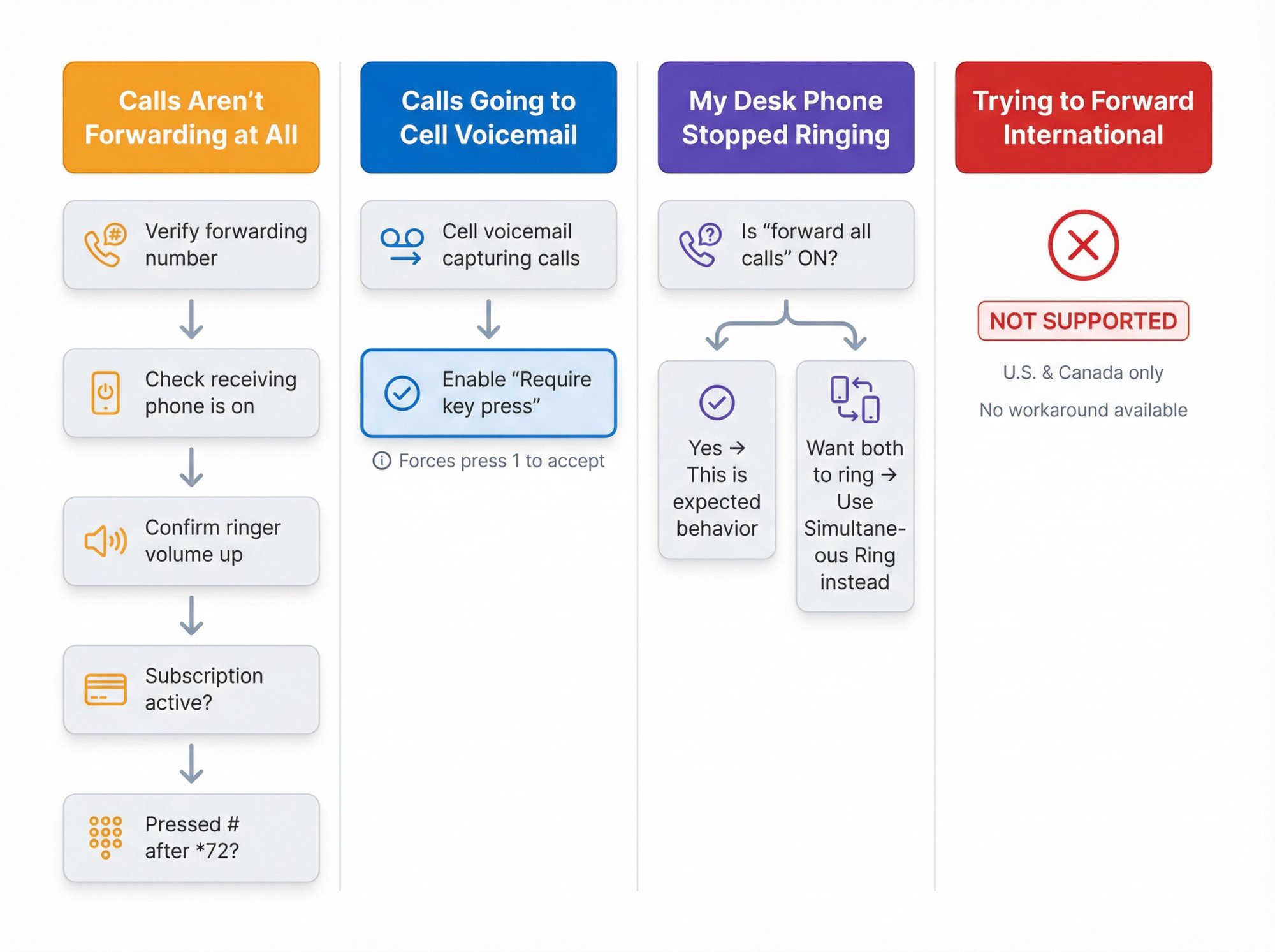
Calls Aren't Forwarding at All#
Check these items:
-
Is the forwarding number correct? (Easy to transpose digits)
-
Is the receiving phone powered on and able to receive calls?
-
Is the ringer volume turned up?
-
Is your Ooma Office subscription active and in good standing?
-
Did you press # after entering the number when using *72?
Calls Are Going to Cell Voicemail Instead of Ringing#
This is the "require key press" problem. Turn on "Require key press on answer" in your forwarding settings. This forces you to actively accept the call by pressing 1, preventing your cell voicemail from capturing it.
My Desk Phone Stopped Ringing#
That's expected if you enabled "forward all calls." When forwarding is ON, Ooma doesn't ring your devices until you disable it.
If you want your desk phone to ring AND forward to another number, use Simultaneous Ring instead. Check both your desk phone device and the external forwarding number as ring destinations in the portal.
I'm Trying to Forward to an International Number#
Ooma Office does not support international call forwarding. Destinations must be U.S. or Canadian phone numbers. There's no workaround.
Best Practices for Ooma Office Call Forwarding#
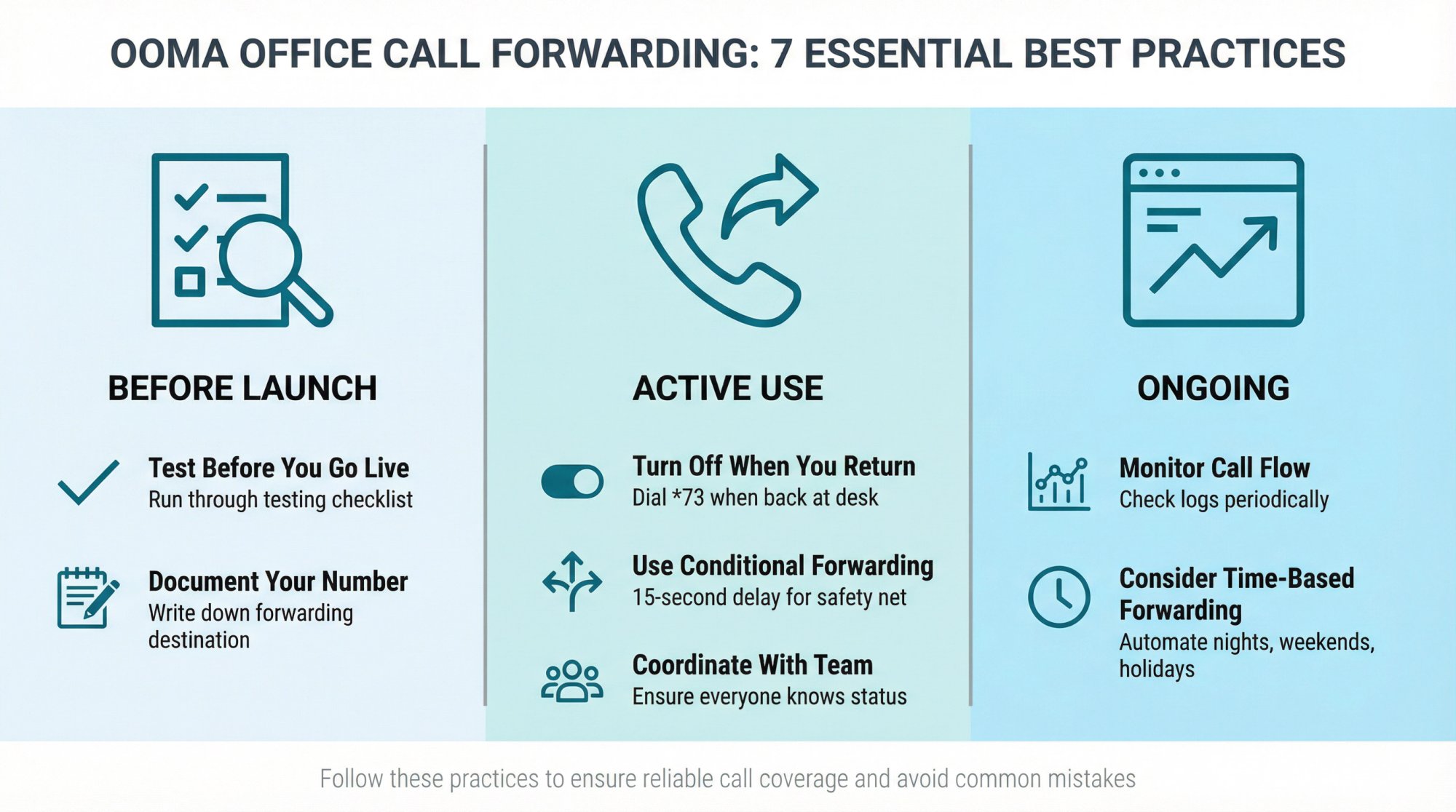
Test before you go live. Run through the testing checklist before relying on forwarding for real business calls. Discovering a misconfiguration after you've already left the office means missed calls.
Document your forwarding number. Write down what number you forwarded to and when. It's surprisingly easy to forget, especially if you enabled forwarding weeks ago and now your desk phone won't ring.
Remember to turn off forwarding when you return. This is the most common mistake. You forward to your cell for a day off, then wonder why your desk phone is silent all week. Dial *73 when you're back at your desk.
Use conditional forwarding strategically. "Forward when unanswered" with a 15-second delay gives you a chance to answer while ensuring a safety net. It's often better than forwarding everything.
Coordinate with team members. If multiple people share a line or extension, make sure everyone knows when forwarding is active. Otherwise someone might think the phone system is broken.
Monitor call flow regularly. Check your call logs periodically to ensure forwarding is working as expected and calls are reaching their destinations.
Consider time-based forwarding. Instead of manually toggling forwarding on/off daily, use Ooma's schedule features or integrate with services like our AI receptionist to automatically forward during specific hours (nights, weekends, holidays).
Frequently Asked Questions#
Is call forwarding included in my Ooma Office plan?
Yes. Call forwarding is available to all Ooma Office subscribers (Essentials, Pro, and Pro Plus) at no extra per-use cost. If your plan includes unlimited calling, forwarded calls don't incur additional charges for domestic U.S. and Canadian numbers.
What's the difference between *73 and *74?
*73 turns off call forwarding completely and clears the stored forwarding number. Use it when you're done forwarding.
*74 toggles forwarding on or off without changing the saved destination number. It's a quick switch for the last number you configured. Use it for daily on/off cycling.
Can I forward calls when my internet is down?
Yes, but only if you've configured offline forwarding in advance. When Ooma detects your devices are offline, it automatically forwards incoming calls to the offline forwarding number you specified. This feature must be set up before the outage occurs.
Can I forward calls to an international number?
No. Ooma Office limits call forwarding to U.S. and Canadian phone numbers only. International forwarding is not supported.
How do I forward my main line or a department (not just my personal extension)?
For group extensions like Ring Groups, Virtual Receptionists, or main company lines, you need Ooma Office Pro Plus. Create a Shared External Line pointing to the external number, then add it as a destination in your Ring Group or menu routing. Standard plans can only forward individual user extensions.
Will call forwarding cost me extra?
No per-use fees exist for call forwarding. However, forwarded calls count as outgoing calls from Ooma to the external number. If you have unlimited calling, there's no extra charge for domestic forwarding. If you have a metered plan, forwarded minutes consume your monthly allotment.
Does Ooma forward text messages too?
No. Call forwarding in Ooma Office only forwards voice calls. SMS/text messages are not forwarded to your cell phone or other destination. Texts to your Ooma number stay in the Ooma system (accessible via the Ooma Office app where supported).
How do I set up "ring me first, then forward to my answering service" routing?
This requires Pro Plus and uses Find Me Follow Me:
-
Create a Shared External Line for your answering service number
-
Enable Find Me Follow Me in Call Handling settings
-
Set ring order: desk phone (15 sec) → mobile app (10 sec) → Shared External Line
-
Calls try you first; if unanswered, they forward externally automatically
You can also achieve a simpler version using "Forward When Unanswered" on standard plans, but it won't give you multi-device sequential ringing.
Can I forward different extensions to different numbers?
Yes. Each Ooma Office extension has its own independent call forwarding settings. You can configure different forwarding numbers, different types (one person uses forward all, another uses forward when unanswered), and different schedules for each extension.
What happens to my call recording if I forward calls?
Forwarded calls are still recorded if you have call recording enabled for that extension. The recording includes the entire call from the original caller through to the forwarding destination. Recordings appear in your Ooma Office call logs as normal.
I want my team to ring first and only forward to Eden if nobody answers. How do I do that?
Use Pro Plus features:
-
Create a Ring Group with your team members' extensions
-
Create a Shared External Line pointing to your Eden number
-
In Ring Group settings, set "if no answer" to redirect to the Shared External Line
-
Calls ring your team simultaneously; after X seconds with no answer, the call forwards to Eden
This keeps control in your hands while ensuring Eden captures anything your team misses.
Call forwarding in Ooma Office is straightforward once you understand the options and settings. Choose the forwarding type that fits your coverage needs. Configure the critical settings (caller ID, require key press, voicemail timing) correctly. Test thoroughly before going live.
And remember: the goal isn't just to forward calls. It's to ensure every caller reaches someone who can help them, whether that's you answering from your desk, you answering from the field, a team member picking up, or Eden handling it with 24/7 AI-powered professionalism.
Set it up once, test it carefully, and stop missing the calls that drive your business forward.
Ready to Transform YourCustomer Experience?
Join hundreds of businesses using Eden AI to handle calls, book appointments, and provide 24/7 customer support.